
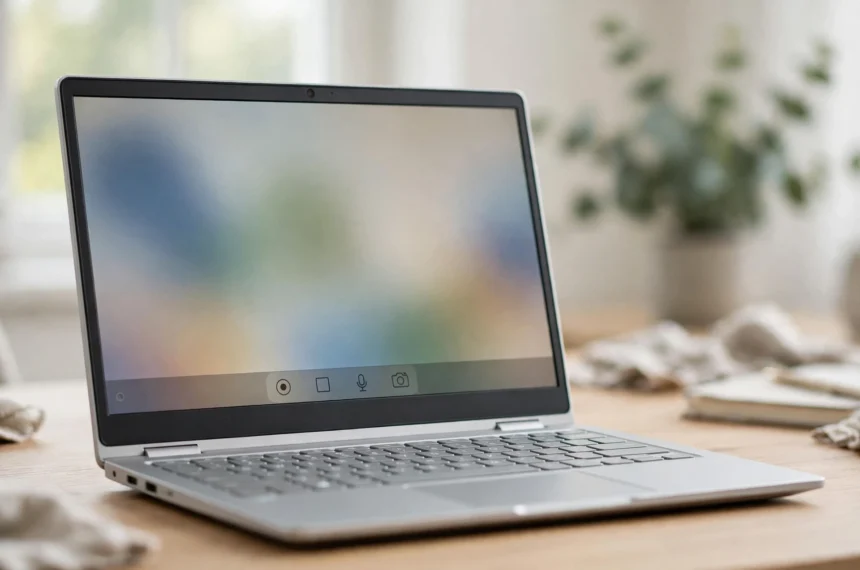
To screen record on a Chromebook, press Shift + Ctrl + Show Windows, click the video camera icon to switch from screenshot mode to Screen record, choose full screen, a partial area, or a single window, and click to start. Stop with the red Stop butto...
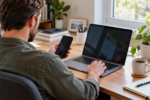
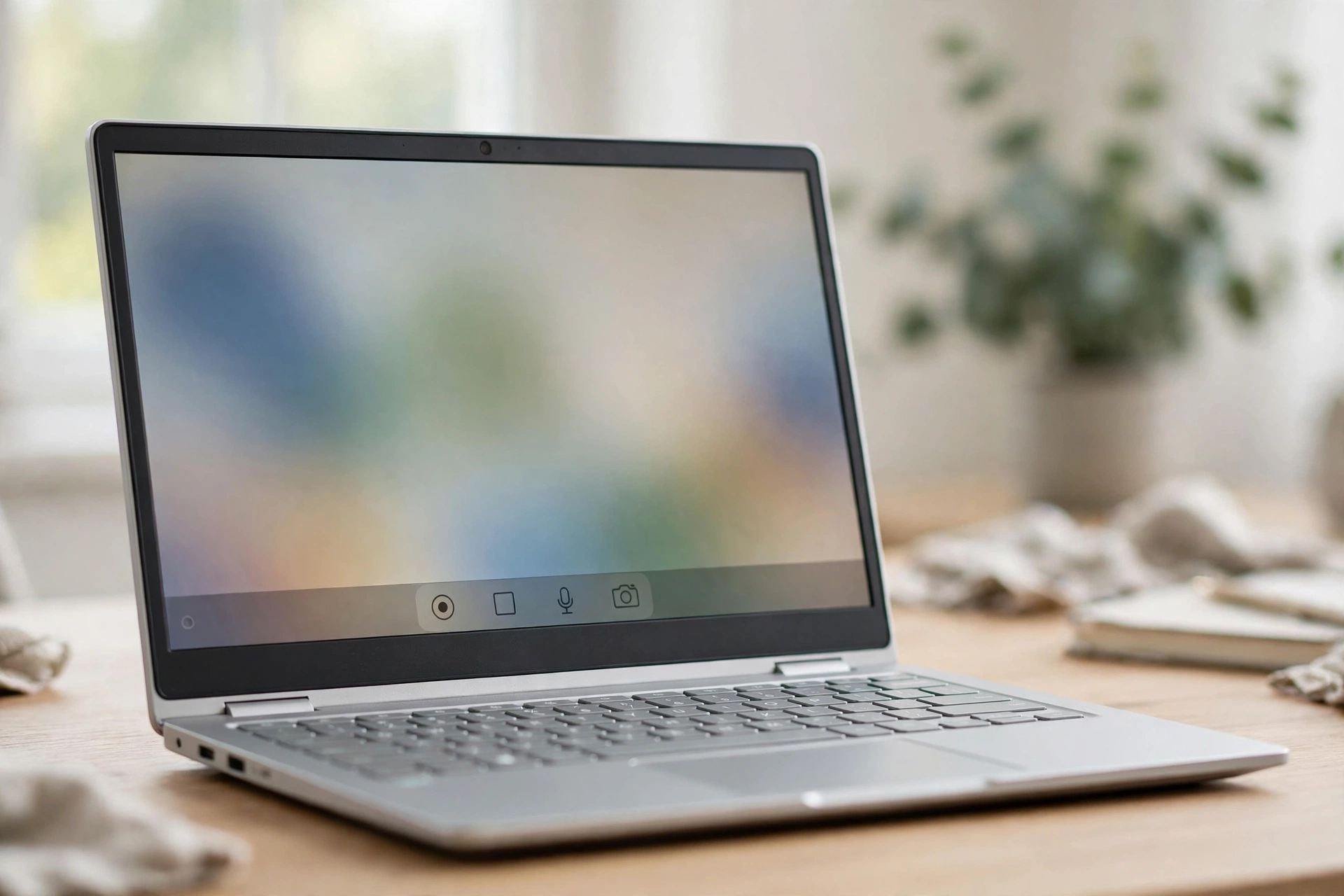
To screen record on a Chromebook, press Shift + Ctrl + Show Windows, click the video camera icon to switch from screenshot mode to Screen record, choose full screen, a partial area, or a single window, and click to start. Stop wit...
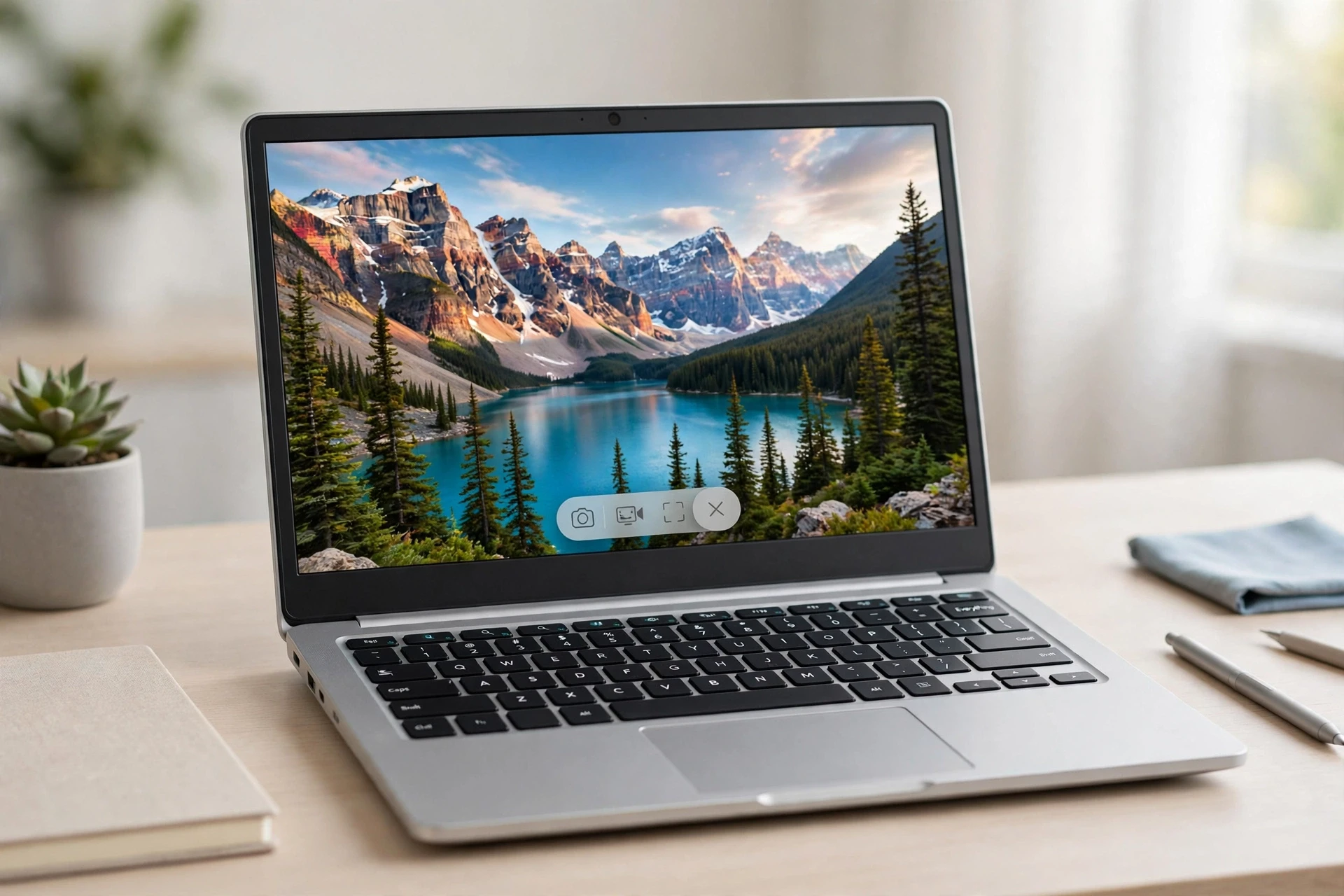
To take a screenshot on a Chromebook, press Ctrl + Show Windows for a full-screen capture, or press Ctrl + Shift + Show Windows to open the Screen Capture tool and choose a full screen, partial area, or single window. The Show Win...
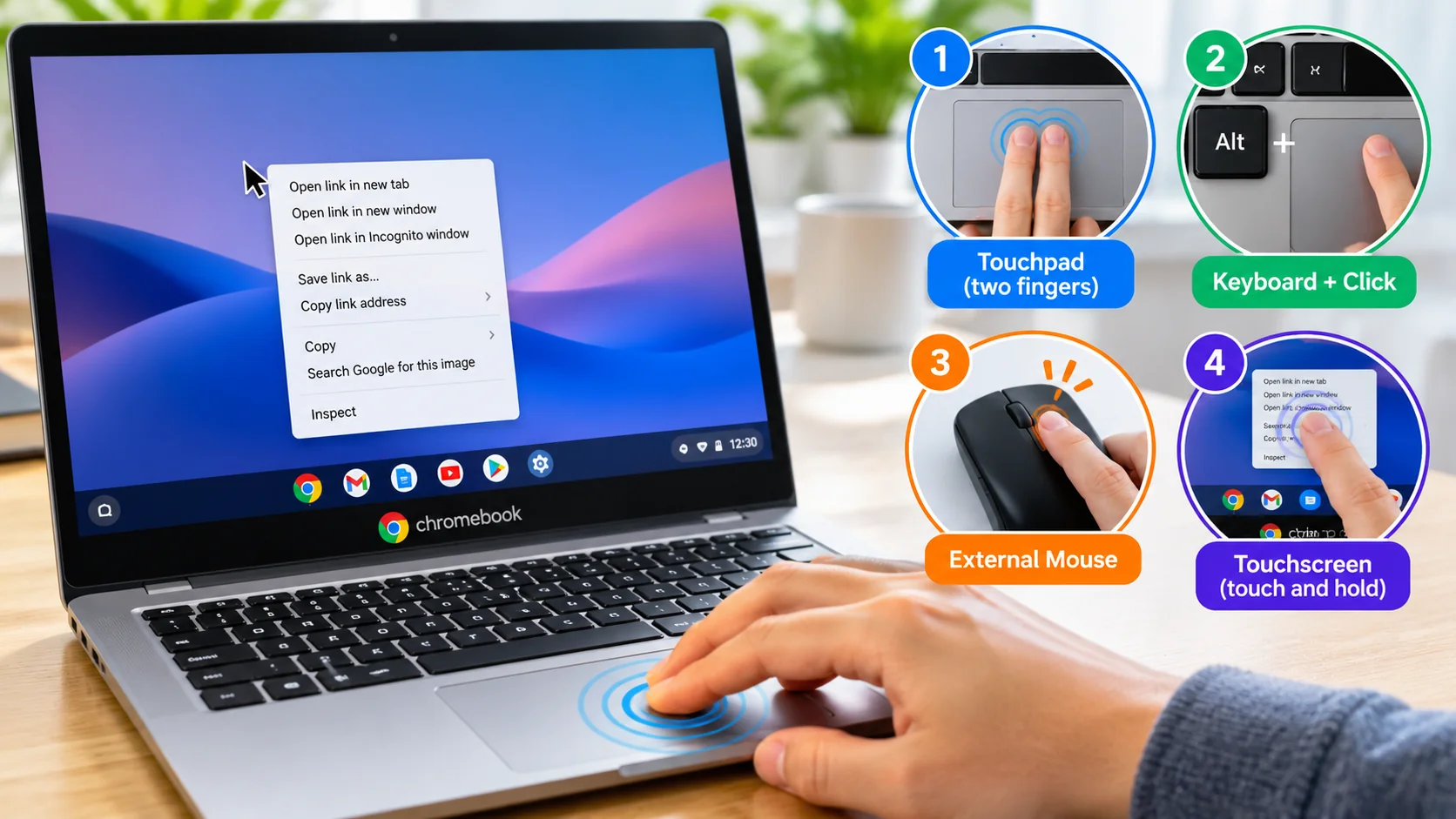
Use the touchpad, a keyboard-assisted click, an external mouse, or a touchscreen to open the right-click menu in ChromeOS. To right-click on a Chromebook, press or tap the touchpad with two fingers at the same time. You can also c...
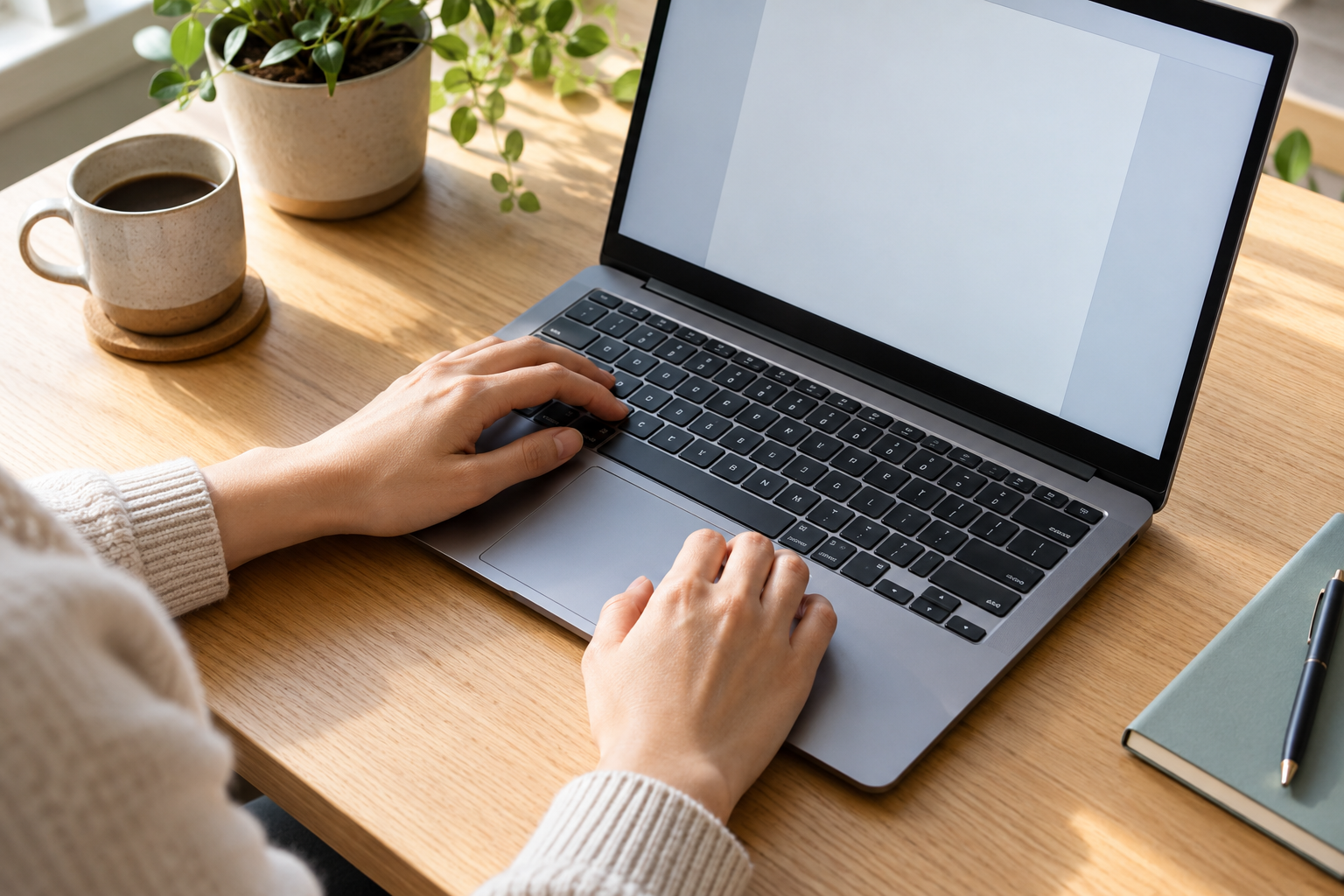
Press Search + V or Launcher + V to open the clipboard on a Chromebook. Click where you want to paste first, then use the shortcut to choose from your recent copied items. Use the arrow keys to select an entry and press Enter to p...
To check devices logged into your Google Account, open the device activity page. Confirm that you have selected the correct account, then inspect the entries. Open a device or session to review it and sign out where access is no l...
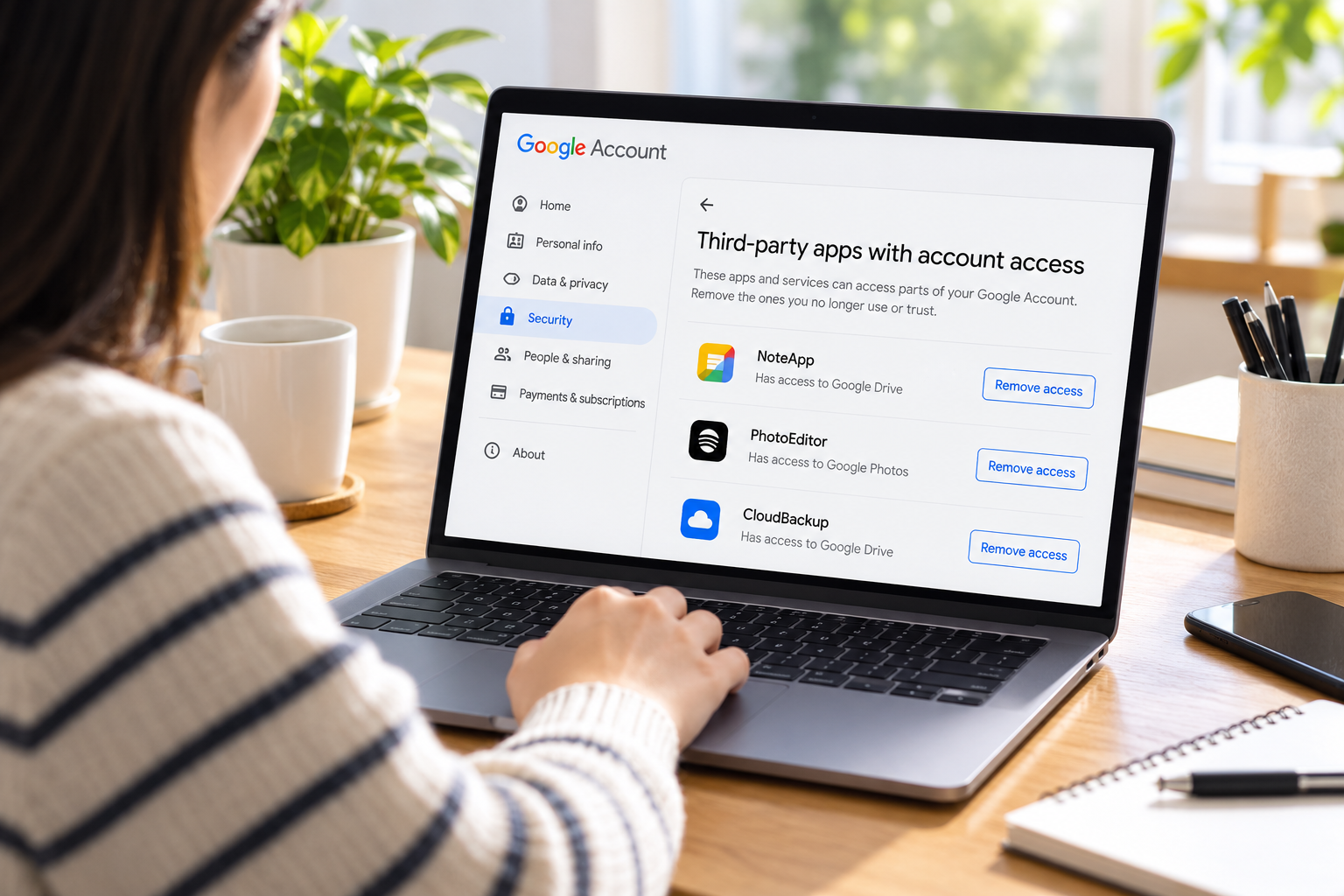
An app you stopped using may still have permission to work with information in your Google Account. To withdraw that permission, visit your account’s connections page, inspect the app’s entry, and use Remove access. You will be as...