
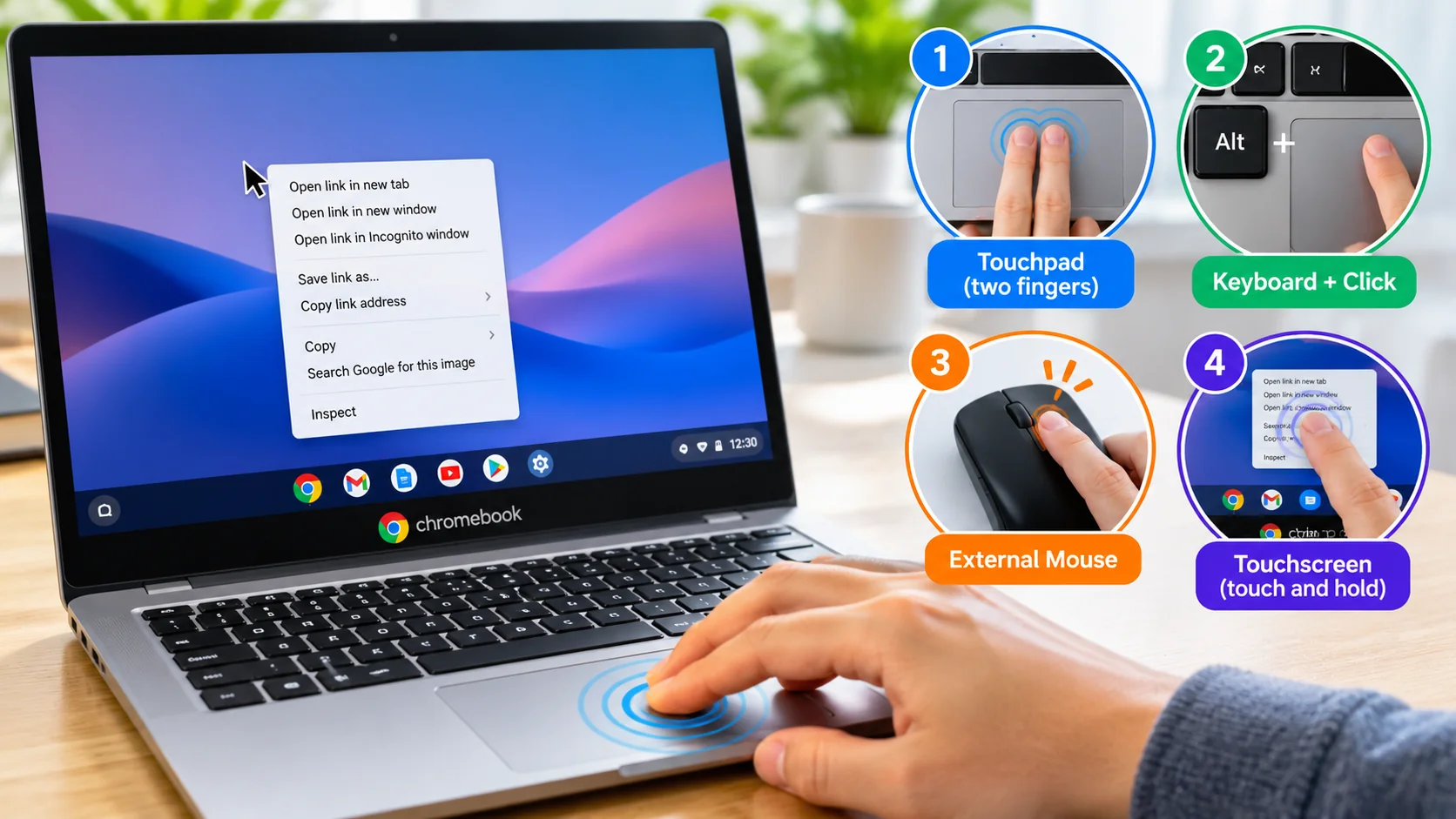
Use the touchpad, a keyboard-assisted click, an external mouse, or a touchscreen to open the right-click menu in ChromeOS.
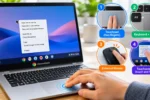
To right-click on a Chromebook, press or tap the touchpad with two fingers at the same time. You can also combine a configured modifier key with a click, use the right button on an external mouse, or touch and hold on a touchscreen.
A right-click opens a context menu. Its options depend on what you select: a link may offer opening controls, a file may show management actions, and selected text may provide copying options.
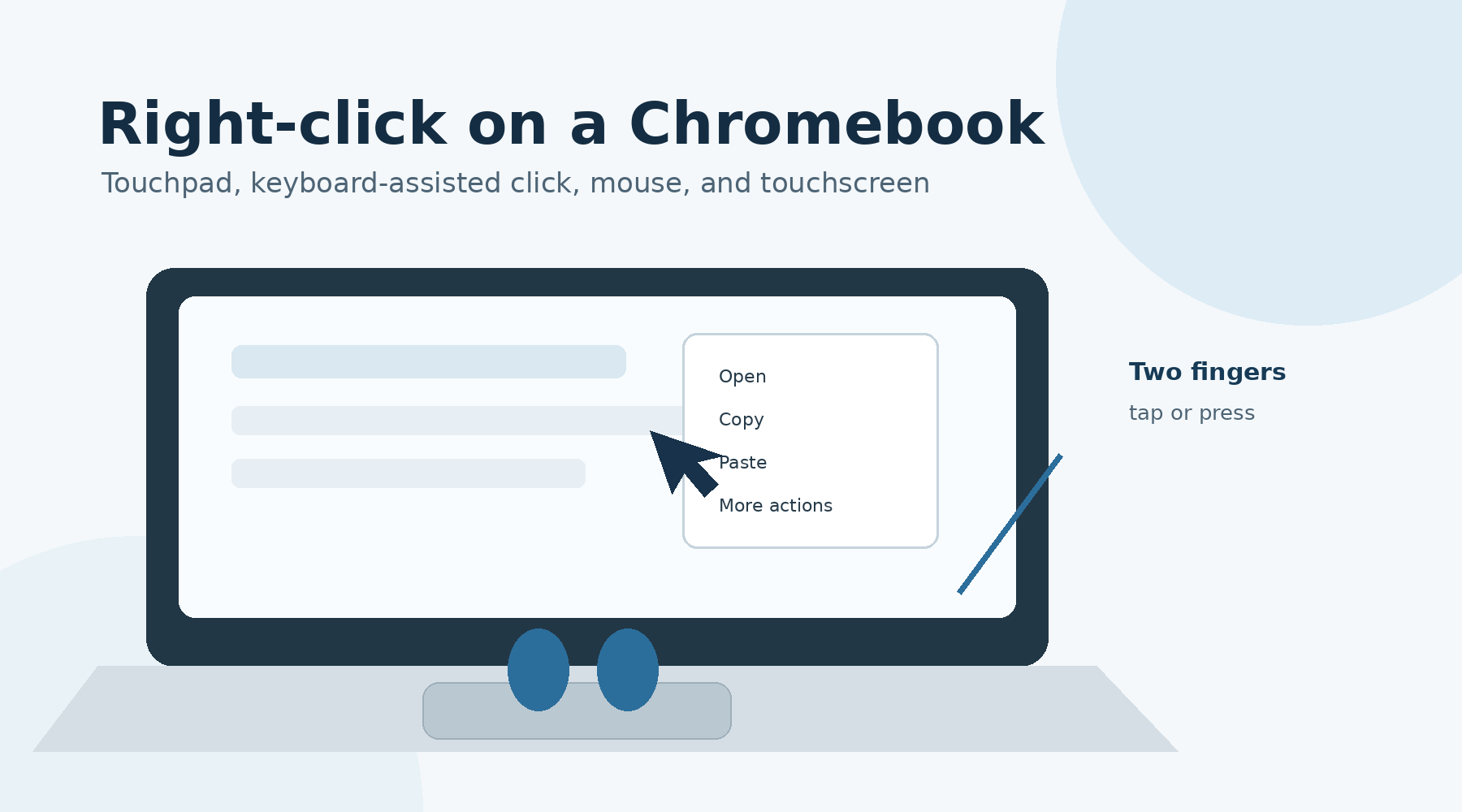
Right-Click With the Chromebook Touchpad
The standard Chromebook method uses two fingers:
1. Move the pointer over the link, file, image, text, or other item.
2. Place two fingers on the touchpad.
3. Tap lightly or press down with both fingers at the same time.
4. Select an action from the menu that appears.
Use a two-finger tap or press; you do not need to aim for the right side of the touchpad. Keep both fingers still while tapping because moving them across the touchpad may scroll the page instead of opening the menu.
The official Chromebook touchpad instructions confirm that either a two-finger tap or a two-finger press can perform a right-click.
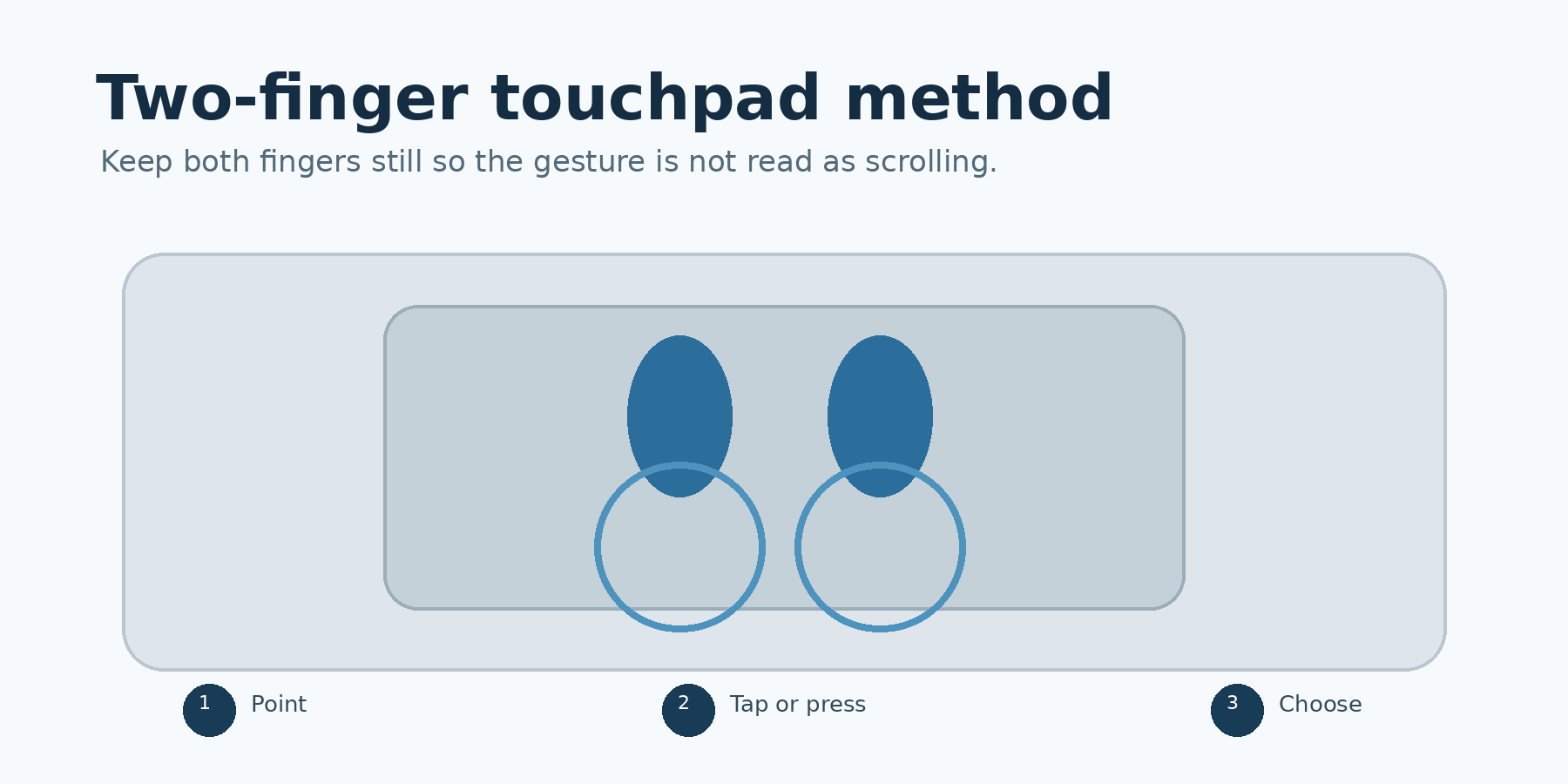
Tap Versus Physical Press
A light two-finger tap works when tap-to-click is enabled. If tapping does nothing, try physically pressing the touchpad with two fingers.
To review the setting, select the time at the bottom-right corner of the screen, then open Settings > Device > Touchpad. Depending on the device, this section may be labeled Touchpad and mouse. Look for the Tap to click control.
Right-Click With the Keyboard and Touchpad
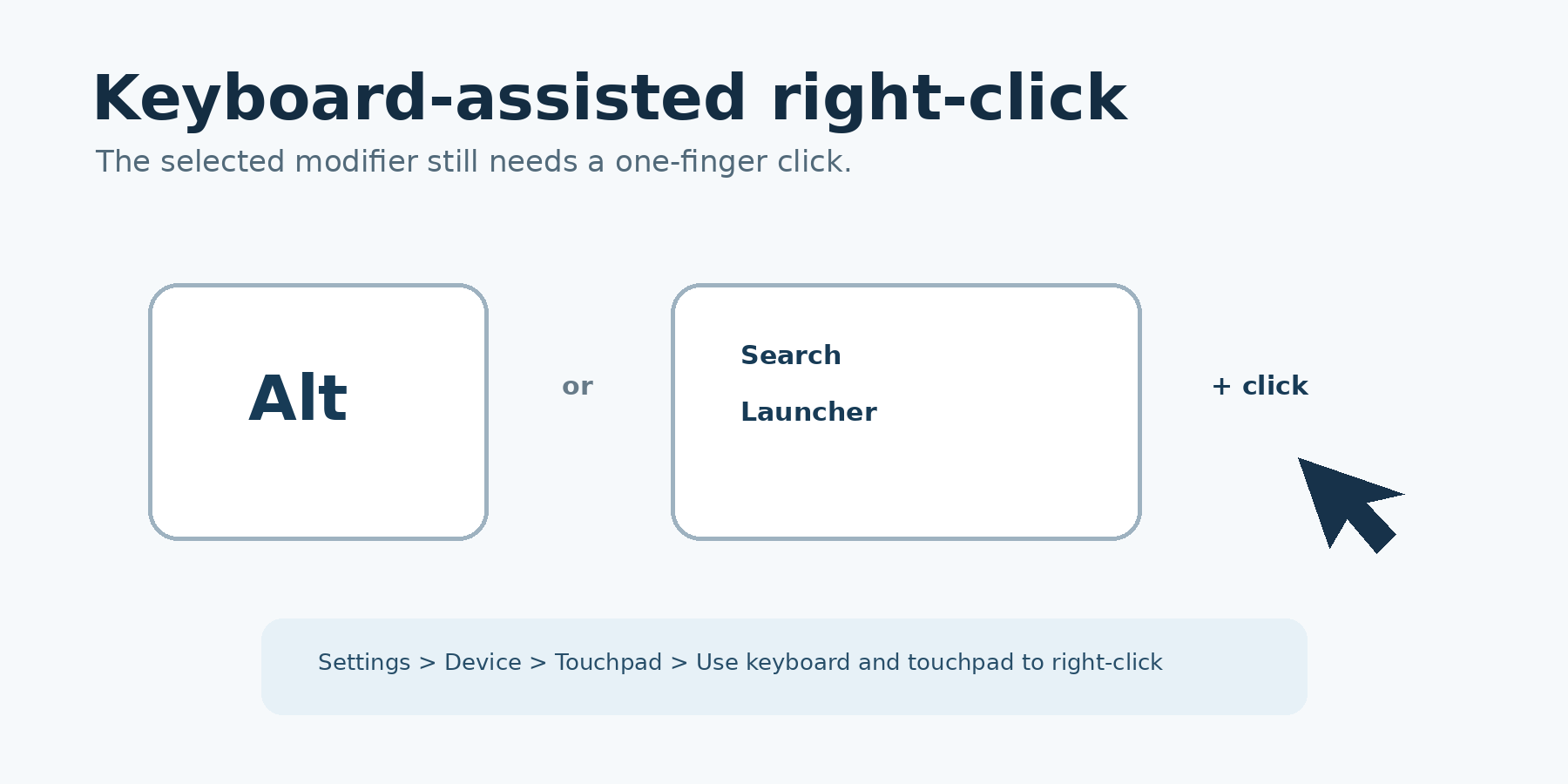
ChromeOS can pair a keyboard key with a one-finger touchpad click. Depending on the selected setting, the modifier can be either Alt or the Search/Launcher key.
1. Move the pointer over the item.
2. Hold the configured modifier key.
3. Click the touchpad once with one finger.
4. Release the key after the context menu opens.
If Alt + click does not work, the feature may be disabled or assigned to the Search/Launcher key. Open Settings > Device > Touchpad > Use keyboard and touchpad to right-click and select one of these options:
- Search/Launcher + click
- Alt + click
- Off
As of October 29, 2026, the official keyboard-shortcut customization guide says this control is set to Off by default for new users. This explains why instructions that present Alt + click as universally active may not work on every Chromebook.
This method still requires a touchpad or mouse click. It is keyboard-assisted rather than a completely keyboard-only right-click.
Right-Click With an External Mouse
A wired or wireless mouse works much as it does on other computers:
1. Point to the item.
2. Press the mouse’s right button.
3. Choose an action from the context menu.
If the left and right buttons perform the opposite actions, open Settings > Device > Mouse > Customize mouse buttons, then check whether Swap your left and right mouse buttons is enabled. The official input-device settings guide documents this control.
Right-Click on a Touchscreen Chromebook
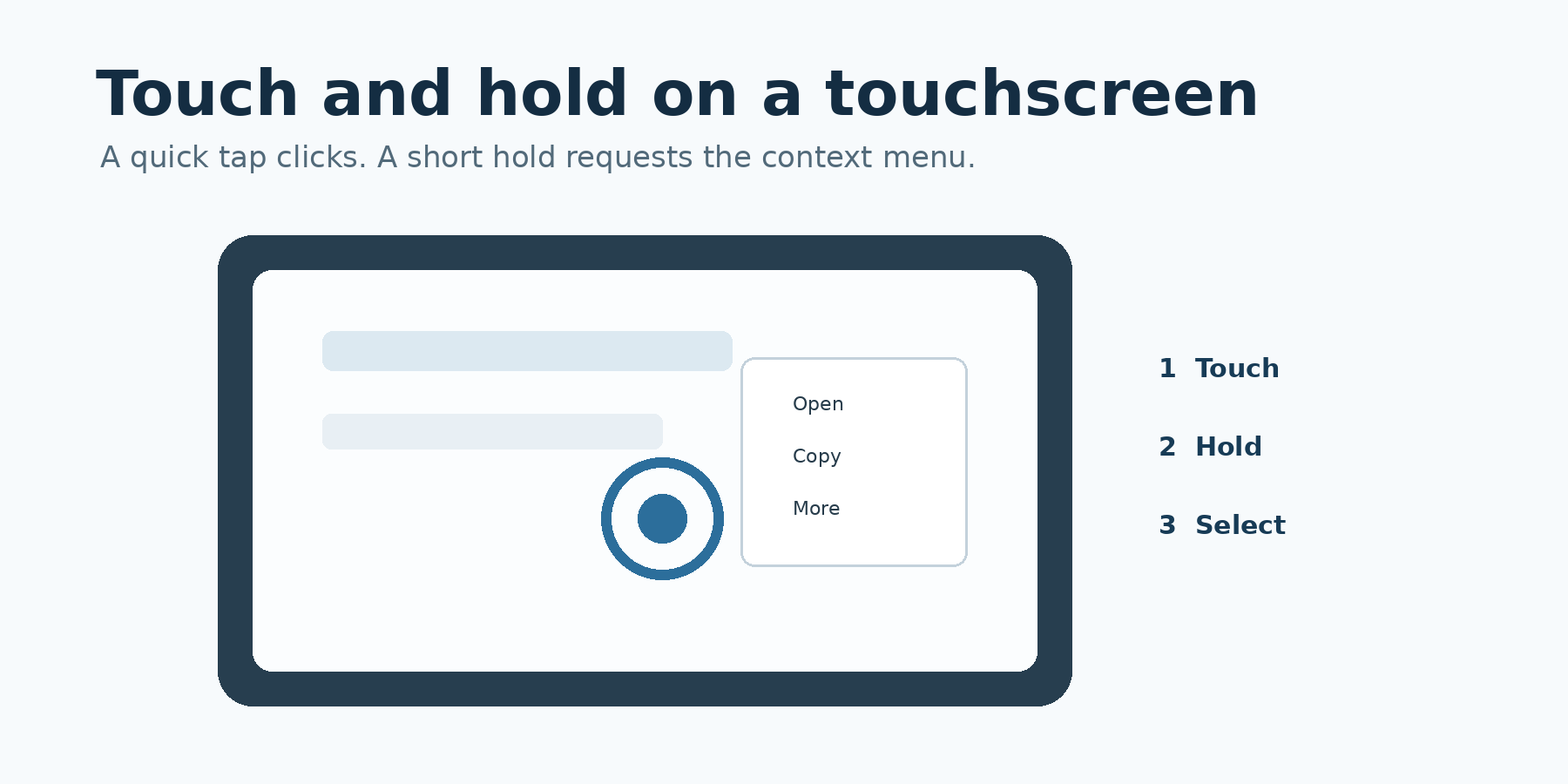
On a touchscreen model, a touch-and-hold gesture performs the equivalent of a right-click:
1. Place one finger on the item.
2. Keep your finger in place briefly.
3. Lift it when the context menu appears.
4. Tap the action you want.
A quick tap produces an ordinary click. Holding your finger in place requests the context menu. This method is documented in the official Chromebook touchscreen guide.
The available menu depends on the item and application. Some screen elements do not provide a context menu.
What a Chromebook Right-Click Can Do
Right-clicking does not perform one fixed command. It asks the current application to show actions relevant to the selected item.
Depending on the location, the menu may let you:
- Open a link in another tab or window.
- Copy text, an image, or a link address.
- Paste compatible clipboard content.
- Rename or manage a file.
- Save an image when the website permits it.
- Inspect spelling suggestions in an editable field.
- Access application-specific controls.
An option may be missing if the selected item does not support it. For example, Paste may be unavailable when the clipboard is empty or when the destination cannot accept the copied content.
To retrieve something copied earlier rather than using only the newest clipboard item, see how to open the clipboard on a Chromebook.
Why Right-Click Is Not Working
Start by identifying whether the problem affects one method or the entire pointing device.
A Two-Finger Tap Scrolls Instead
Place both fingers on the touchpad without moving them sideways or vertically. Tap once or use a firm two-finger press. A moving two-finger gesture is normally interpreted as scrolling.
Tapping Does Nothing
Try pressing the touchpad physically. If that works, open the touchpad settings and check whether Tap to click is turned on.
Alt Plus Click Does Nothing
Open the Use keyboard and touchpad to right-click setting. Select Alt + click if that is the combination you want, or use Search/Launcher + click if that option is selected instead.
The Context Menu Does Not Appear for One Item
Test the same right-click method on a different item, such as a browser link or a file. A particular page element or application may not offer a context menu even when the gesture is working correctly.
The Entire Touchpad Is Unresponsive
Check whether the pointer moves with a one-finger gesture. If the whole touchpad is unresponsive, the issue is broader than right-clicking.
The official touchpad troubleshooting guidance recommends removing dust or dirt, pressing Esc several times, and restarting the Chromebook. If the problem continues, follow the device manufacturer’s support guidance. Save open work before restarting.
A Mouse Right-Click Does Not Work
Confirm that ordinary pointer movement and left-clicking work. If the mouse is otherwise unresponsive, reconnect it or check its power and connection. If only the buttons appear reversed, inspect the mouse-button setting described above.
Frequently Asked Questions
Where is the right-click button on a Chromebook?
Most Chromebook touchpads do not need a dedicated right-click button. Press or tap the touchpad with two fingers to open the context menu.
Can I right-click on a Chromebook without a mouse?
Yes. Use a two-finger touchpad tap, a configured keyboard-and-touchpad combination, or touch and hold on a touchscreen Chromebook.
Why does Alt plus click not work on my Chromebook?
The keyboard-assisted right-click control may be set to Off or assigned to Search/Launcher + click. Check the setting under Settings > Device > Touchpad.
How do I right-click on a Chromebook touchscreen?
Touch and hold the item until its context menu appears. A quick tap performs a normal click instead.
Is a two-finger tap the same as a double-click?
No. A two-finger tap uses two fingers at the same time and requests a context menu. A double-click uses one finger or button twice and normally opens or activates an item.
Conclusion
For most Chromebook owners, the simplest right-click method is a simultaneous two-finger touchpad tap or press. A touchscreen supports touch and hold, while an external mouse uses its regular right button.
Keyboard-assisted clicking is also available, but its modifier must be selected in the touchpad settings. If a method fails, test another item and another input method before changing settings. This helps separate an application-specific limitation from a touchpad, mouse, or configuration problem.




One Comment