
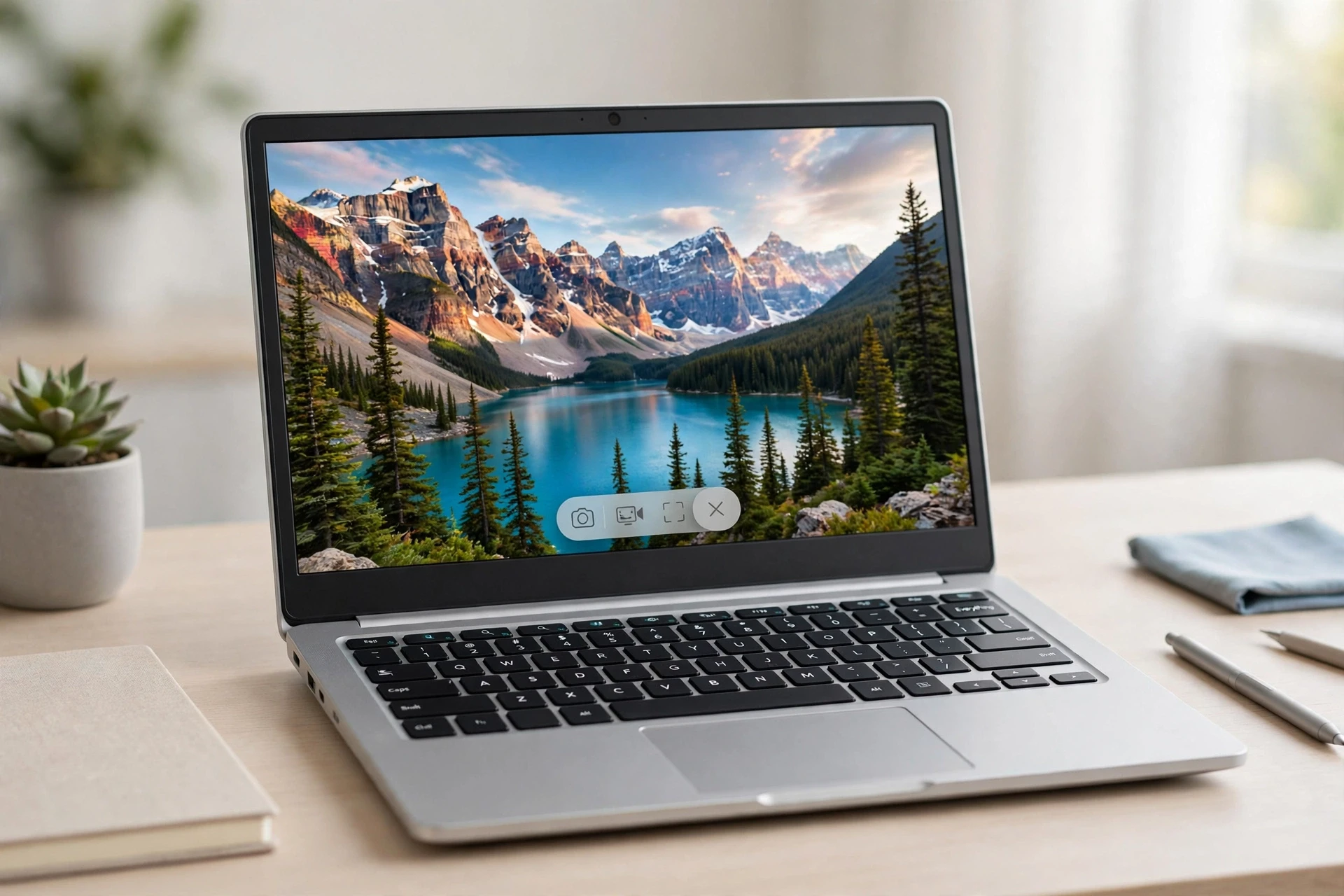
To take a screenshot on a Chromebook, press Ctrl + Show Windows for a full-screen capture, or press Ctrl + Shift + Show Windows to open the Screen Capture tool and choose a full screen, partial area, or single window. The Show Windows key looks like a rectangle with two lines beside it and is usually in the top row of the keyboard.
Most built-in Chromebook keyboards do not have a Print Screen key like a Windows laptop, so the shortcut is different at first. Once you know the Show Windows key, screenshots take only a few seconds. Screenshots are also copied to your clipboard automatically, and by default they are saved in the Downloads folder.
These steps use a standard US English QWERTY Chromebook keyboard; key positions may differ on international layouts.
Take a Full-Screen Screenshot
The fastest method captures everything visible on the screen.
- Open the page, app, or document you want to capture.
- Press Ctrl + Show Windows at the same time.
- Look for the small notification in the bottom-right corner confirming the capture.
On a newer Chromebook with a dedicated Screenshot key, pressing that key opens the Screen Capture tool instead. From there, choose the full-screen option.
Take a Partial Screenshot
Use a partial screenshot when you only need one section of the screen, such as a paragraph, a form, or an error message. This avoids cropping afterwards.
- Press Ctrl + Shift + Show Windows to open the Screen Capture tool.
- Make sure the camera (Screenshot) option is selected, not the video (Screen record) option.
- Choose the partial-area option.
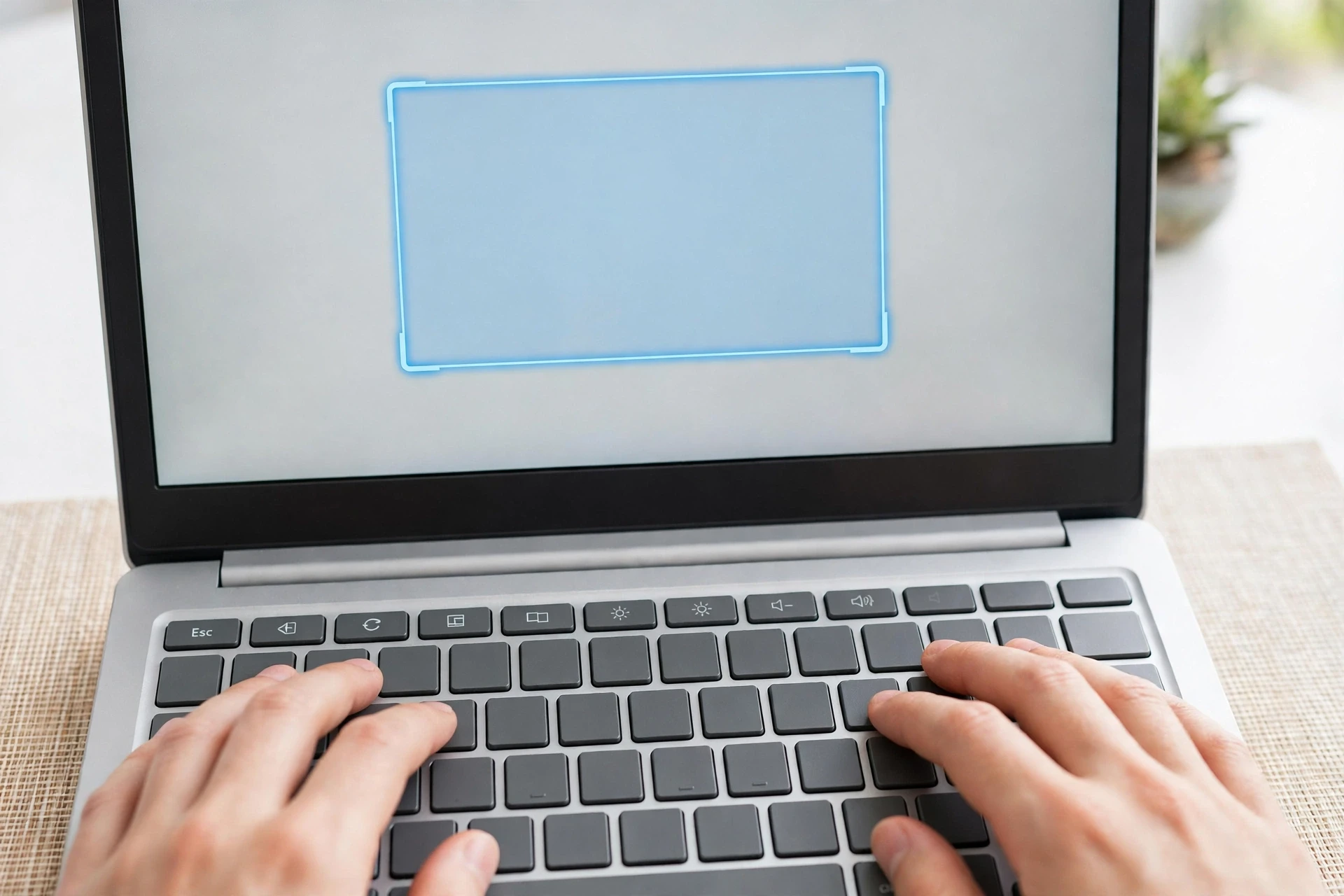
- Click and drag to draw a rectangle around the area you want.
- Release the mouse or touchpad to capture only that area.
If the selection is slightly off, you can adjust it before capturing. Google notes that you can press Tab to highlight a corner of the selection.
Take a Screenshot of One Window
A window screenshot is useful when you want a clean image of one app without the rest of your desktop.
- Press Ctrl + Shift + Show Windows to open the Screen Capture tool.
- Select the window-capture option.
- Click the window you want to capture.
This is a good choice for a tutorial or a message, because it leaves out other open windows and desktop clutter.
Take a Screenshot From Quick Settings
If you prefer not to use a keyboard shortcut, use the on-screen menu.
- Select the time at the bottom-right corner of the screen.
- Select Screen capture.
- Choose full screen, partial area, or window, then capture.
This method is especially useful on a touchscreen Chromebook or when the keyboard is folded away.
Take a Screenshot in Tablet Mode
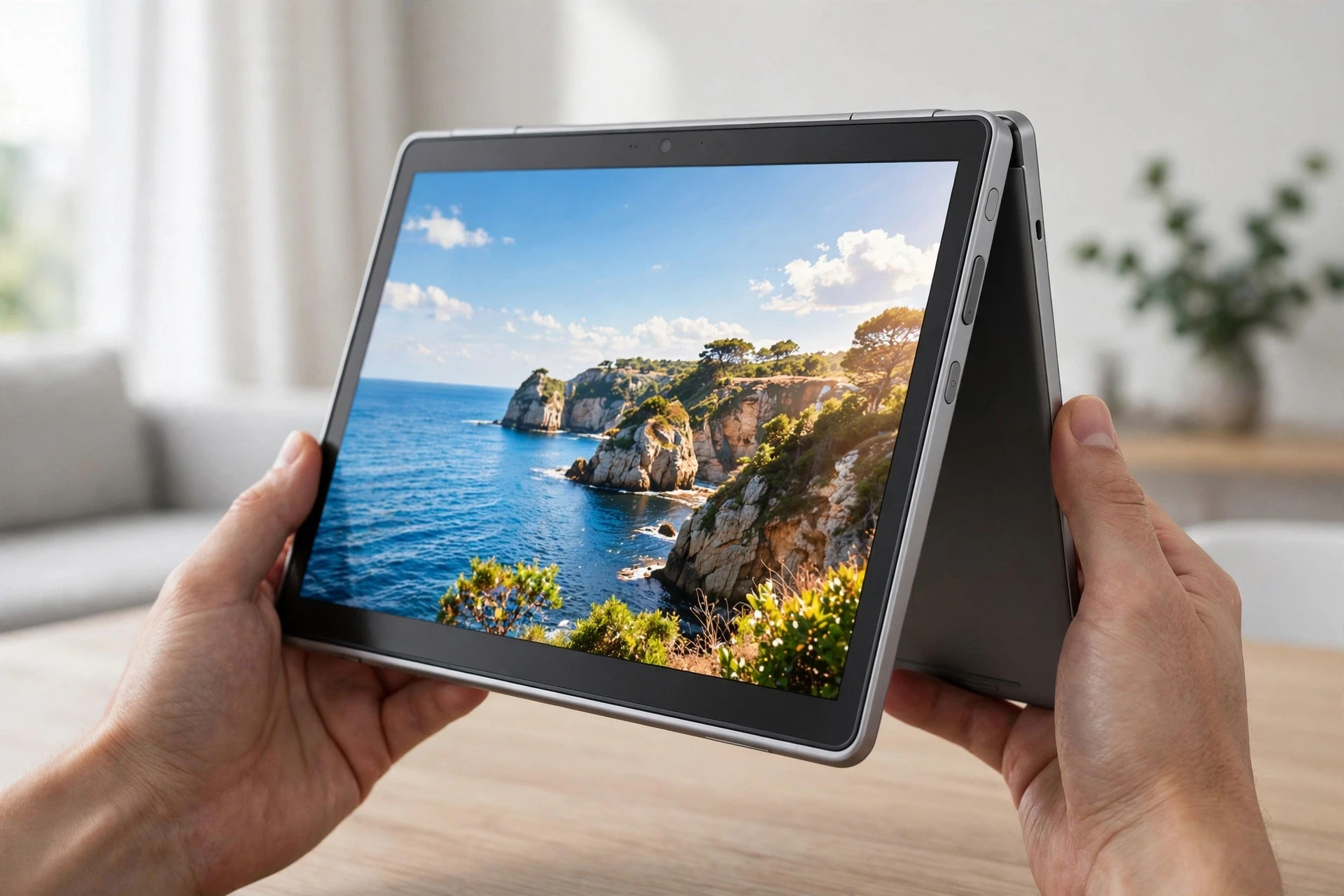
On a convertible Chromebook in tablet mode, or on a ChromeOS tablet, use the side buttons.
- Open the screen you want to capture.
- Press Power + Volume Down at the same time.
- Release both buttons when the capture is taken.
This captures the full screen. For a partial or window capture in tablet mode, open Quick Settings and select Screen capture instead.
Take a Screenshot With an External Keyboard
An external Windows or Mac keyboard may not have a Show Windows key. Use these substitutes:
- Full screen: Ctrl + F5
- Screen Capture tool (partial or window): Ctrl + Shift + F5
Where Chromebook Screenshots Are Saved
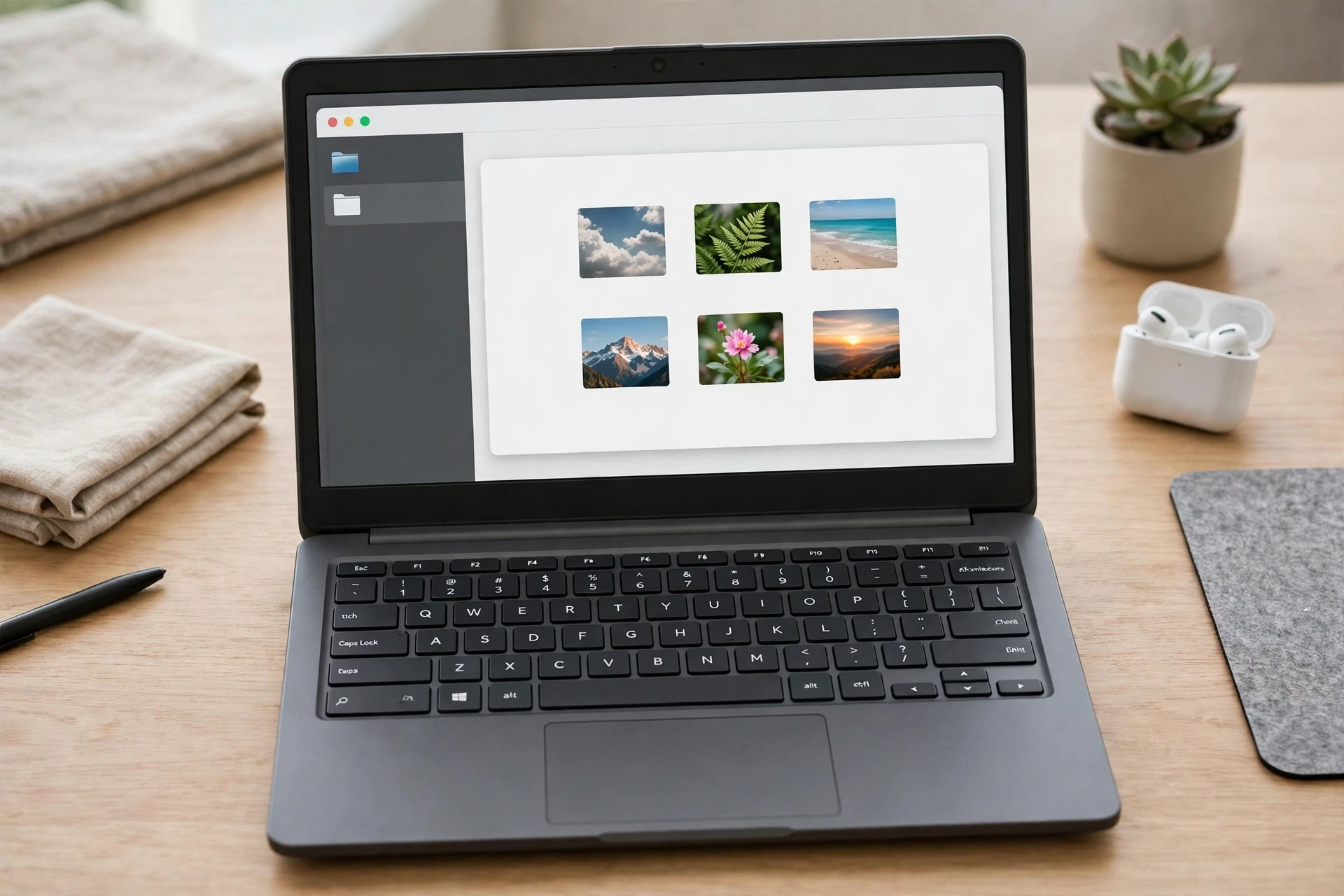
By default, screenshots are saved in the Downloads folder in the Files app. To find one:
- Open the Files app from the shelf or app launcher.
- Select Downloads.
- Look for the newest image, usually named with the date and time it was taken.
You can also paste the screenshot straight away, because it is copied to the clipboard. Press Ctrl + V to paste the latest capture, or open the clipboard history to choose an earlier item. See how to get to the clipboard on Chromebook for the full steps.
To change the save location, open the Screen Capture tool, select Settings, then Select folder, and choose the folder you want future screenshots to use.
What to Check if a Screenshot Does Not Work
Nothing happens after the shortcut
Check that you are pressing the Show Windows key, not a brightness or volume key. The Show Windows key is the rectangle with two lines, usually in the top row where F5 would be on a Windows keyboard. Try the Quick Settings method to confirm whether the capture tool itself works.
The capture includes too much of the screen
Use Ctrl + Shift + Show Windows and choose partial or window capture instead of the instant full-screen shortcut. A full-screen shortcut always captures the whole display.
The screenshot is blank or shows the wrong window
Make sure the window you want is open and in front before you capture. If you used window capture, click the correct window. If a video or protected content appears blank, the app may restrict capture for that content.
An external keyboard shortcut does not work
Try Ctrl + F5 for a full screen and Ctrl + Shift + F5 for the capture tool. If neither works, test the Chromebook keyboard or the Quick Settings method to narrow down whether the problem is the external keyboard layout.
The Screen Capture option is missing
If the Chromebook is managed by a school or employer, ask the administrator first, because an administrator policy can disable screen capture even on an updated device. Do not try to bypass a managed setting.
Before You Share a Screenshot
A screenshot captures everything visible, including open tabs, notifications, names, and personal details in the background. Before sending or posting one, check the image once, crop out anything private, and close tabs you do not need in the frame. This is a simple habit that prevents a useful screenshot from sharing more than you intended.
Frequently Asked Questions
What is the Chromebook screenshot shortcut?
Press Ctrl + Show Windows for a full screen. Press Ctrl + Shift + Show Windows to open the Screen Capture tool for a partial area or a single window.
Where do I find screenshots on a Chromebook?
In the Files app, under Downloads, unless you changed the save folder in the Screen Capture settings.
How do I screenshot on a Chromebook without a Show Windows key?
Use Ctrl + F5 on an external keyboard, press the dedicated Screenshot key if your Chromebook has one, or open Quick Settings and select Screen capture.
Can I take a scrolling screenshot on a Chromebook?
ChromeOS does not offer a built-in scrolling screenshot. Capture the visible area, scroll, and capture the next part if you need more than one screen.
Can I screenshot on a Chromebook touchscreen?
Yes. Press Power + Volume Down for a full screen in tablet mode, or use Quick Settings and select Screen capture for a partial or window capture.
Conclusion
For most Chromebook users, Ctrl + Show Windows is the one shortcut worth remembering, and Ctrl + Shift + Show Windows covers everything else: a selected area or a single window. Tablet users can use Power + Volume Down for a full screen, and external-keyboard users can use Ctrl + F5 for a full screen or Ctrl + Shift + F5 for the capture tool.
Once the capture is taken, check it in Downloads, paste it from the clipboard if you need it immediately, and remove any private details before sharing. If you are still getting used to Chromebook input, the guide to right-clicking on a Chromebook covers the touchpad and mouse methods in the same practical style.
Sources: Google Chromebook Help, Take a screenshot or record your screen; Use your Chromebook as a tablet; and Google’s Chrome OS screenshot guidance giving Ctrl + F5 for a non-ChromeOS keyboard, Capture a screenshot to resolve an AdSense issue.

One Comment