
To check devices logged into your Google Account, open the device activity page. Confirm that you have selected the correct account, then inspect the entries. Open a device or session to review it and sign out where access is no longer needed.
The page includes recent access as well as current sign-ins. Check each entry’s status and details before deciding whether you recognize the access.
Open Your Account’s Device List
Use the direct link above on your computer or phone, or navigate through your account settings:
- Open your Google Account.
- Select Security & sign-in.
- Find Your devices.
- Choose Manage all devices.
Before investigating an unfamiliar entry, check the account email address. Review personal and work accounts separately if you use both.
Understand What the Entries Mean
A session represents access through a browser, app, or service. One phone or computer can produce several sessions, so repeated names do not necessarily indicate additional physical devices.

The displayed activity time can reflect background syncing rather than someone actively using the device. Locations may also identify a nearby place instead of your exact position.
An unexpected timestamp alone does not establish unauthorized access; security changes you did not make warrant further investigation. Google’s device-access explanation describes how to interpret the entries.
Sign Out Where Access Is No Longer Needed
Open the relevant entry and choose Sign out. Review matching sessions individually when the same device name appears more than once. Google recommends signing out of every session carrying that name when you need to end its access.
A Signed out label identifies a recent entry whose session has ended. Its continued appearance does not, by itself, mean the sign-out failed.
Investigate Activity You Cannot Explain
An unfamiliar entry deserves attention, but avoid deciding what happened from the device name alone. Consider whether you recently borrowed a computer, replaced a phone, or changed how you access the account. If you still cannot account for the activity, use the following checks.
Review Recent Security Events
Within Security & sign-in, find Recent security events and select Review security events. Examine the events shown. Where an event was not yours, select No, it wasn’t me and follow the instructions.
Inspect your recovery email address and phone number for changes you did not authorize. For Gmail, look for unfamiliar forwarding arrangements or filters. These checks form part of Google’s compromised-account procedure.
Change Your Password if You Suspect Unauthorized Access
If you believe another person has entered the account, change its password promptly. Review other accounts where you reused that password as well.
If you cannot sign in, use Google’s account recovery page. A device review cannot resolve a situation in which someone has changed your credentials or recovery information and locked you out.
Check Your Sign-In Protection
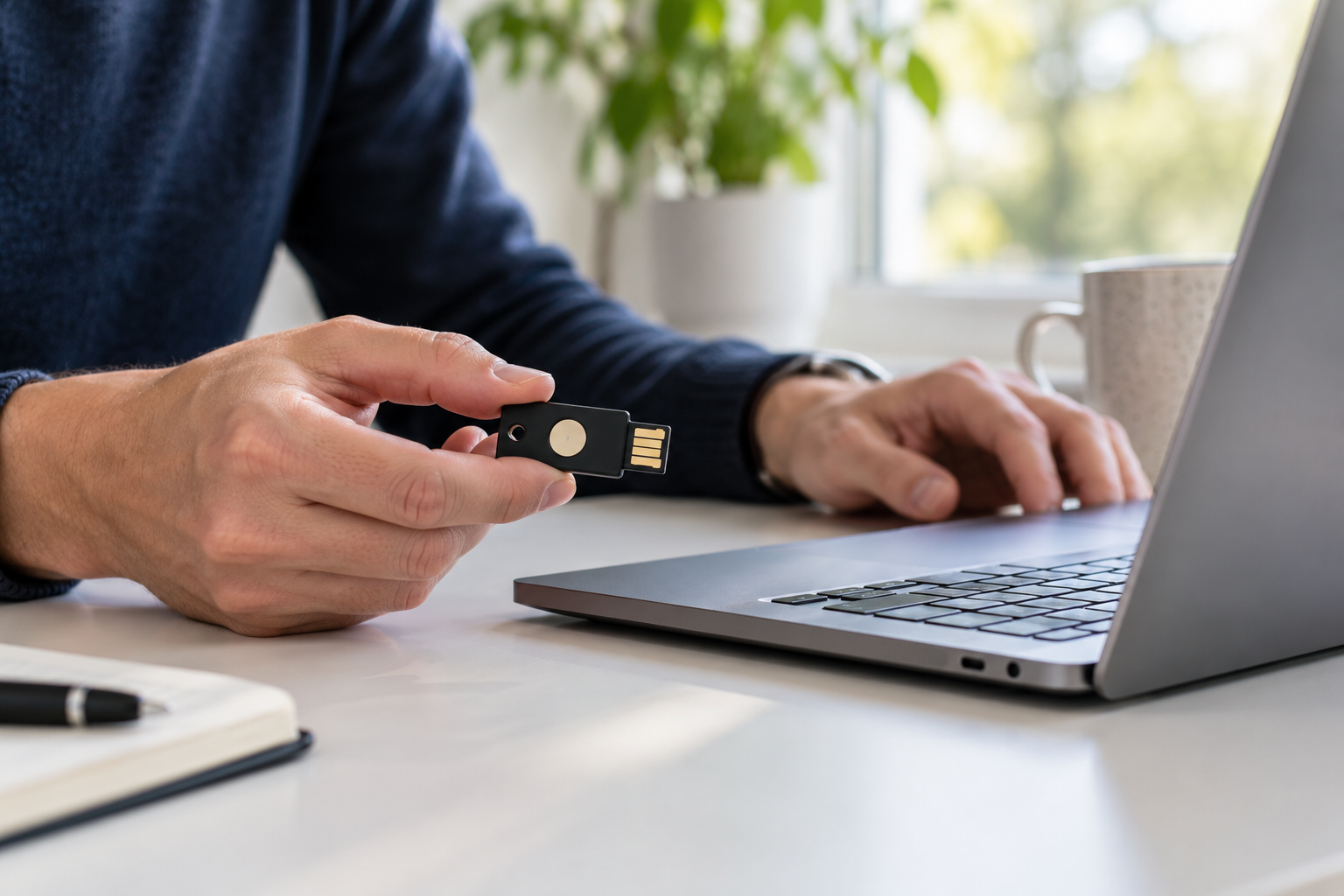
Review 2-Step Verification, including any methods already configured. It adds another verification step to password-based sign-ins, helping protect the account if the password is stolen. Investigate authentication methods you did not add rather than assuming an enabled setting is sufficient.
Does Changing Your Password Sign Out Every Device
Changing or resetting your password ends many sign-ins, but Google lists exceptions. These include devices used to verify your identity, some devices with authorized third-party apps, and certain connected home devices. Its password-change guidance explains these exceptions.
Revisit device activity after a password change and review account connections separately. Do not treat the password change as confirmation that every form of access has ended.
Review Connected Apps Separately
Device sessions and app permissions answer different questions. The device list helps you investigate sign-ins; an app connection concerns a relationship you authorized with another service.
If you also need to disconnect apps from your Google Account, inspect the permissions on the connections page.
Removing an app’s access can interrupt features that depend on that permission. If you also want information deleted from the provider’s systems, check its deletion process separately. Google’s linked-app guidance explains the connection controls.
Finish With the Unexplained Entries Resolved
A useful device review ends with a decision about each questionable entry: recognize it, end its access, or investigate it through the account-security process. When there are signs of unauthorized activity, continue beyond the device list to check credentials, recovery details, and connected apps.