
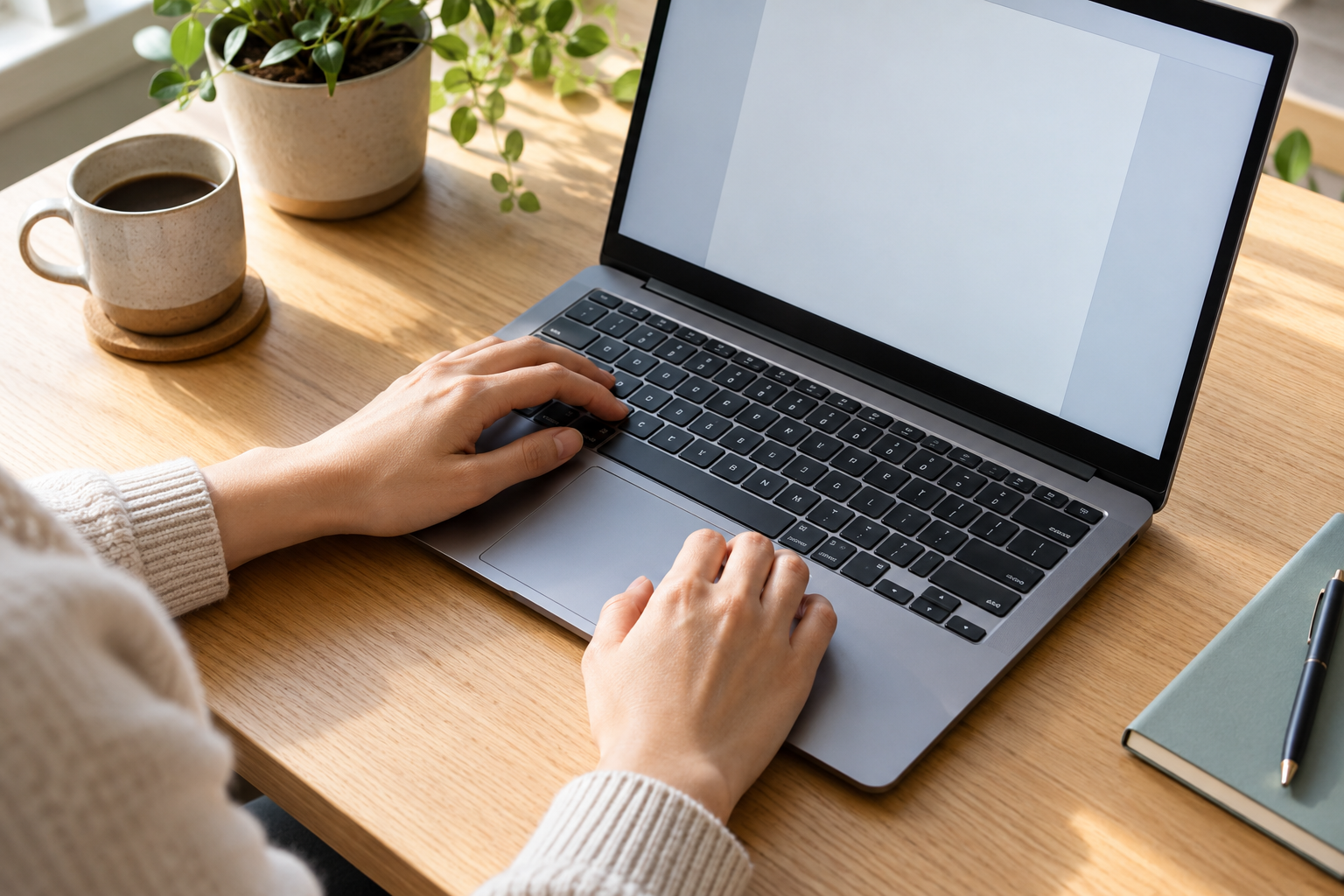
Press Search + V or Launcher + V to open the clipboard on a Chromebook. Click where you want to paste first, then use the shortcut to choose from your recent copied items. Use the arrow keys to select an entry and press Enter to paste it.
You can also access copied items through the on-screen keyboard, which is useful when working without a physical keyboard.
Open the Clipboard With Your Keyboard
To copy text and retrieve it from the clipboard:
- Highlight a short piece of text.
- Press Ctrl + C.
- Click inside the document, message, or text box where you want it.
- Hold Search or Launcher, then press V.
- Select the copied entry and press Enter.
The clipboard history holds up to five recent copied items. For the most recent copy, Ctrl + V pastes directly without opening the menu. To paste text without its original formatting, use Ctrl + Shift + V.
These controls are listed in the official Chromebook keyboard shortcuts reference.
For example, when assembling a reading list, you can copy a title and a web address separately, then choose the entry you need rather than returning to each original page.
Find the Search or Launcher Key
Chromebook keyboards can use either a Search key or a Launcher key. Look for a magnifying-glass or circle symbol. These keys open search or your apps when pressed on their own.
Using an External Keyboard
On a Windows keyboard connected to your Chromebook, use the Windows key in place of Search or Launcher. On a connected Mac keyboard, use Command instead. These substitutions apply while using the keyboard with ChromeOS; they are not instructions for opening clipboard history on Windows or macOS.
Access the Clipboard Without a Physical Keyboard
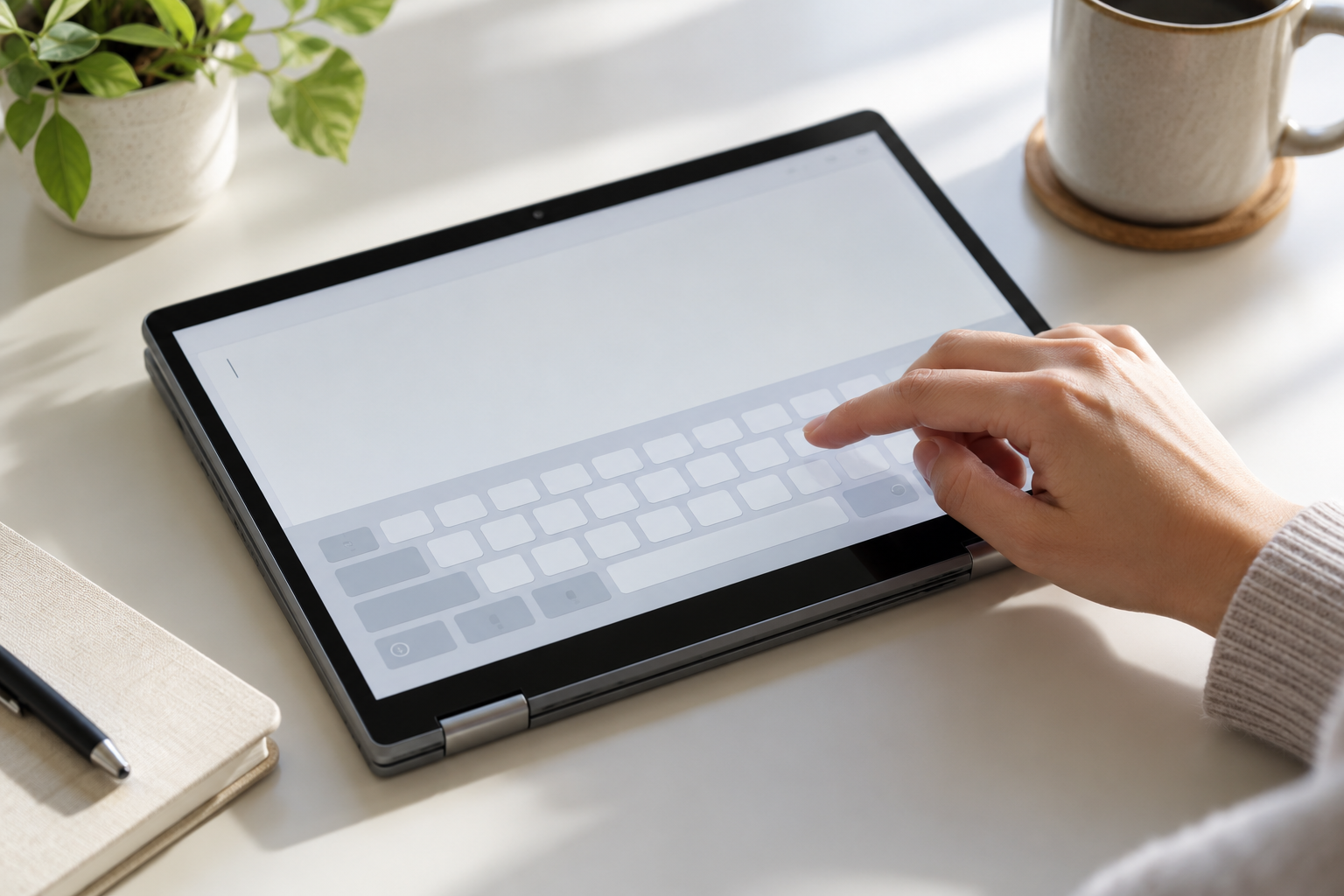
The on-screen keyboard includes a clipboard control. To enable it:
- Select the time at the bottom right.
- Open Settings.
- Select Accessibility.
- Under Keyboard and text input, turn on On-screen keyboard.
With the keyboard displayed, tap the destination where you want to insert your content. Select Clipboard, then tap the copied item you want to paste.
The official guide to the on-screen keyboard documents both enabling the keyboard and pasting from its clipboard panel.
Delete a Copied Item
In the on-screen keyboard’s clipboard panel, press and hold an entry, then tap Delete. This removes an item you no longer need from the clipboard panel.
What to Check if the Clipboard Does Not Work
Start by separating a copying problem from a shortcut problem. Copy a short, non-sensitive sentence and try pasting it into an editable text box.
- If Ctrl + V works but Search + V or Launcher + V does not open the clipboard menu, check the Search or Launcher key’s assigned function.
- If nothing pastes, select the original text again and repeat the copy operation.
- If the problem occurs in one destination, try another editable text box to narrow down whether the issue is specific to that app or page.
Check Whether the Key Was Remapped
ChromeOS lets you assign different functions to keys, including Search and Launcher. A key changed to Caps Lock, for example, will no longer perform its original role.
Open Settings, find the keyboard controls under Device, and look for Remap keyboard keys. Check the action assigned to the key you are pressing.
The official Chromebook keyboard guide explains these key assignments and the keyboard troubleshooting options below.
Look Up the Shortcut on Your Device
Open Settings, then Device, Keyboard and inputs, and View keyboard shortcuts. Use this reference if your keyboard layout differs from the standard US English layout covered here.
Check for a Keyboard Problem
If other key combinations also fail, save your work and turn the Chromebook off and back on. For persistent problems, open Settings, select About ChromeOS, then Diagnostics to test the keyboard.
If Diagnostics does not register the keys used in the shortcut, the problem may extend beyond the clipboard menu.
Keep Important Copies Somewhere Permanent
Treat the clipboard as a short-term working area. If a copied passage, address, or reference matters, paste it into a document or note you intend to keep. That avoids depending on a recent-items menu as your only record.
For everyday use, open the clipboard menu when selecting an earlier copy, paste directly when using your latest copy, or use the on-screen keyboard when working by touch.





2 Comments