
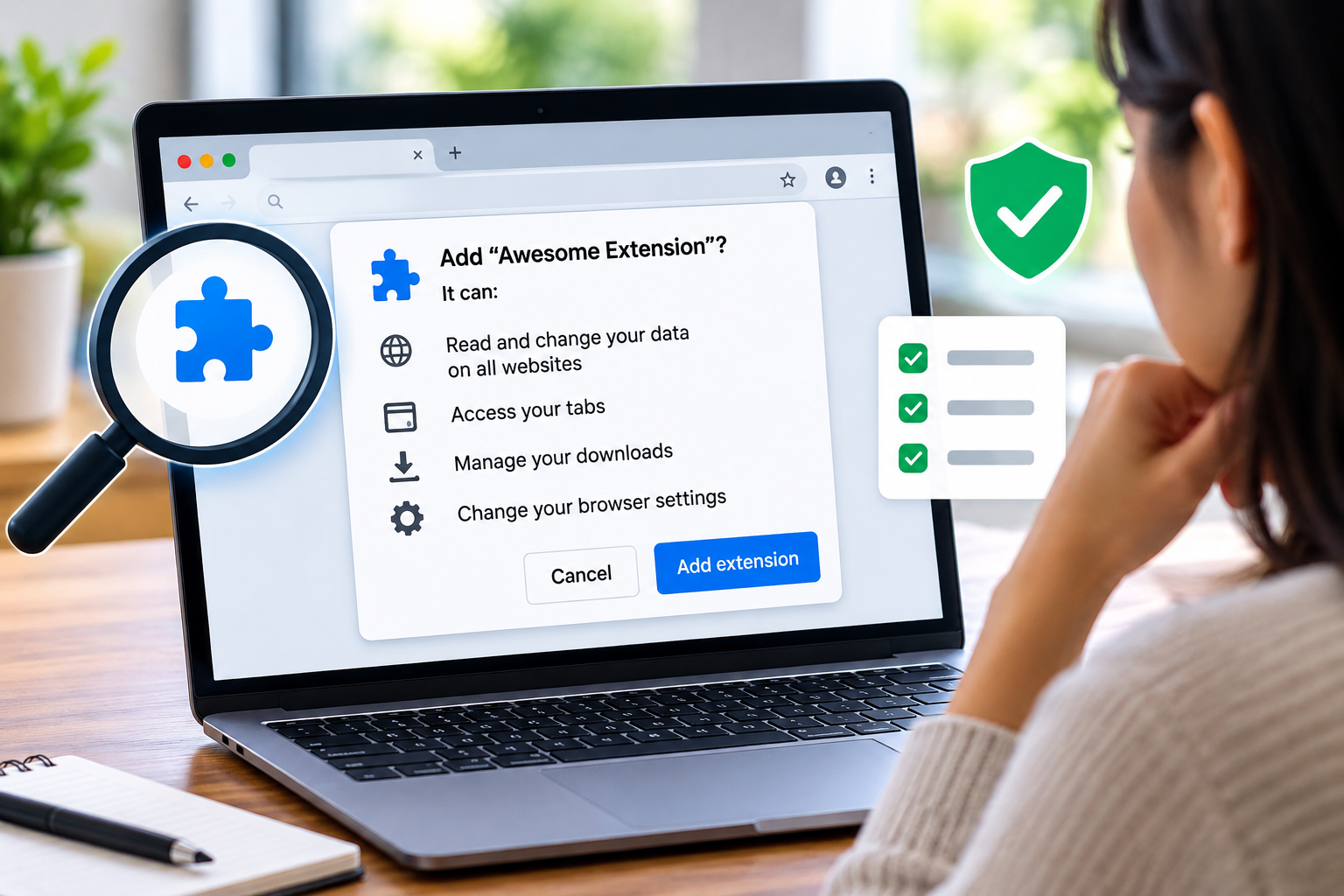
A browser extension can add a useful feature in seconds: block distracting pages, save a recipe, translate text, or change how a website looks. The permission prompt that appears during installation deserves more attention than the “Add” button.
Permissions describe what an extension may access or change. They do not tell you, by themselves, that its developer will misuse that access. They do help you decide whether the access makes sense for the feature you want.
First, Decide Whether You Need the Extension
Before installing one, check whether your browser or the website already has the feature. Every additional extension is another piece of software you will need to keep track of.
If you do need it, read its store listing with one question in mind: What task is this extension supposed to perform? A page translator will need access to page content while it works. An extension that only changes the appearance of one site may be harder to justify if it asks to work across every site you visit.
That comparison is more useful than treating every broad permission as automatically malicious. Some legitimate features require broad access. You are deciding whether this particular tool needs it for your particular use.
Read What the Permission Actually Says
Permission wording differs between browsers and extensions. You may see a request to read or change data on websites, access tabs, or use a browser feature such as downloads. Read the full prompt before accepting it.
Pay particular attention to site access. An extension that can work on all websites has a wider reach than one limited to a particular site. Chrome, for example, offers site access choices for supported extensions, including access when you select the extension, on specific sites, or on all sites. The controls available depend on the extension’s requested permissions.
Ask what the extension would encounter during normal browsing. If you use the same browser for banking, email, work documents, and casual reading, permission to operate across websites deserves a closer look.
Check the Listing Beyond Its Star Rating
A high rating is one signal, but it does not explain why an extension requests a permission. Review the listing for a clear description of what it does, the developer’s identity, recent updates, and information about data handling. Look at a sample of recent reviews for specific reports about behavior, while remembering that reviews alone cannot verify how software works.
If the description is vague or you cannot connect the requested access to a stated feature, leave it uninstalled until you understand the reason. There is rarely a need to accept an unclear prompt immediately.
Remember That Permissions Can Change
Installation is not the last time you may be asked to make a decision. An update or an optional feature can request additional access. Chrome notes that permission warnings may appear when an extension is installed or updated, while optional permissions may be requested after installation. Firefox also provides controls for reviewing optional extension permissions.
When a new prompt appears, check what changed. Do not approve it solely because you have used the extension for a long time. The new request should still match a feature you want to use.
Review Extensions You Already Have
Open your browser’s extension management page and look through the installed list. For each extension, ask:
- Do I still use it?
- Do I recognize why I installed it?
- Does its site access match where I use it?
- Is there an extension I installed for a single task and forgot to remove?
In Chrome, open the Extensions menu and choose Manage extensions to review an extension’s details and available site access settings. Firefox provides extension controls through Add-ons and themes, including permissions information where applicable. Browser menus can change, so use the browser’s current help instructions if the labels on your device differ.
Remove an extension you no longer need. If you still need it but its access seems broader than necessary, check whether your browser lets you narrow the sites on which it runs. Changing that setting can affect how the extension works, so test the feature afterward.
What If an Extension Behaves Unexpectedly?
An extension is worth reviewing if it begins opening pages you did not request, changes your search settings unexpectedly, or asks for new access without a clear connection to its purpose. Those signs do not identify the cause on their own, but they give you a reason to inspect your installed extensions and browser settings.
Disable the extension while you investigate. If you decide to remove it, use your browser’s extension management page. For an account security concern, go to the affected service through its usual app or website and review the account there.
For a broader explanation of passwords, multifactor authentication, and phishing, see the Fappelo Online Safety Guide.
The Practical Rule
Before you add an extension, describe its job in one sentence. Then compare that job with the permissions it requests. If the connection is unclear, look into it before installing. Revisit the decision when an update asks for more access, and remove extensions you no longer use.








2 Comments