
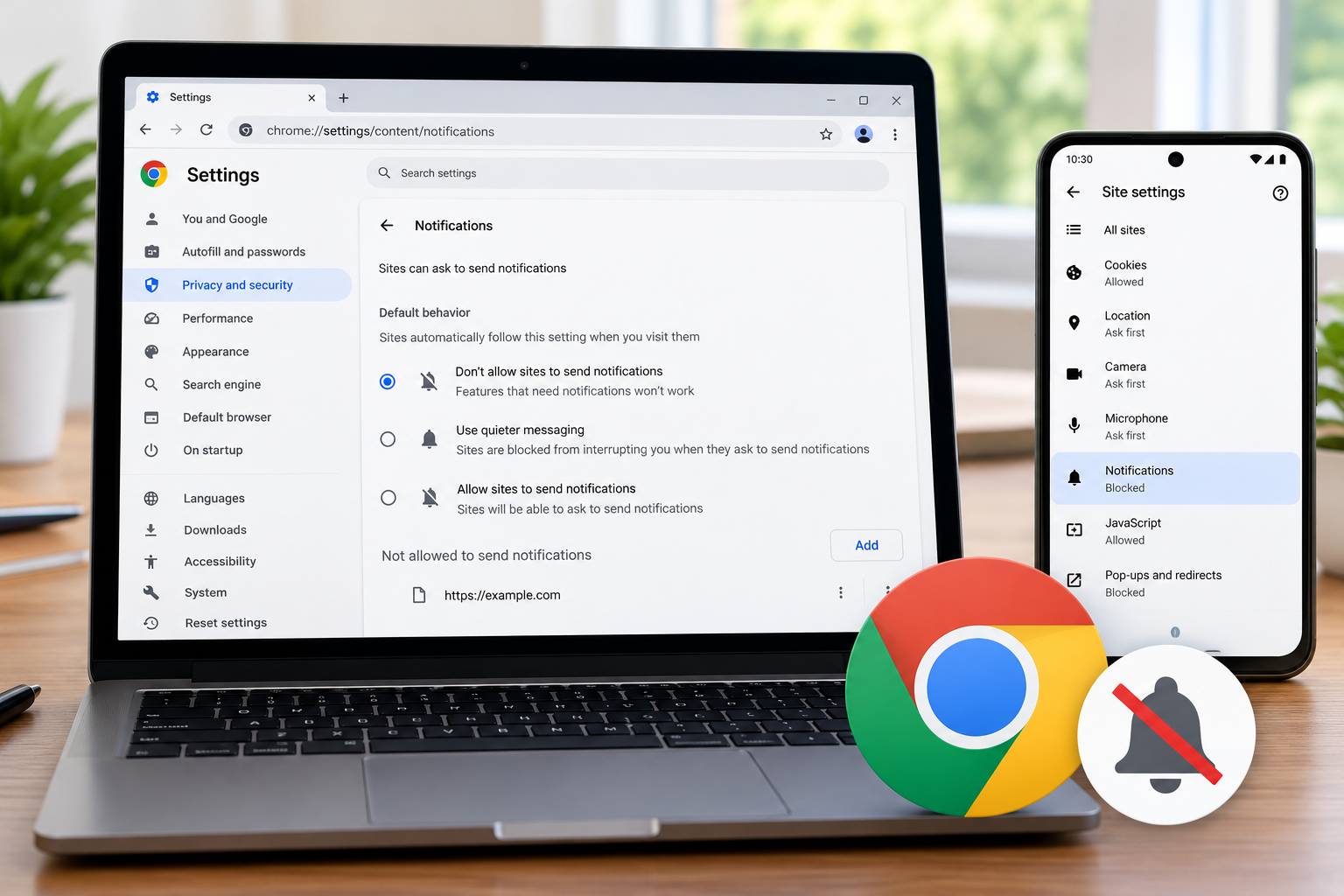
To turn off the website notifications in Chrome on a computer, open Settings → Privacy and security → Site settings → Notifications, then block the unwanted website. To stop future permission requests, choose Don’t allow sites to send notifications. On Android, open Settings → Site settings → Notifications.
If an alert claims your device is infected, avoid its links and buttons. Open Chrome’s settings yourself to review the website’s permission.
Turn Off Website Notifications on a Computer
These instructions apply to desktop Chrome, including Windows and Mac. Start with website sending the unwanted alerts.
Block a Specific Website
- Open Chrome’s three-dot menu and select Settings.
- Go to the Privacy and security → Site settings → Notifications.
- Under Not allowed to send notifications, select Add.
- Enter the website’s address and confirm with Add.
Use the domain shown on the unwanted notification. You can make this change in settings without reopening the website.
Stop New Notification Permission Requests
On same Notifications settings page, select the Don’t allow sites to send notifications under default behavior options.
Also review the websites already listed as allowed. Block unwanted entries explicitly rather than assuming a change to the default has dealt with every previous permission.
If you want occasional notification requests with fewer interruptions, Chrome offers Use quieter messaging. That reduces the prominence of permission prompts; it is not the same choice as blocking them.
Turn Off Website Notifications on Android
On an Android phone or tablet, you can change the overall notification setting or unsubscribe from an individual website.
Change the Overall Setting
- Open Chrome.
- Tap the three-dot menu and select Settings.
- Open Site settings → Notifications.
- Turn the setting at the top off.
Stop Alerts from One Website
On some Android devices, the notification itself includes Unsubscribe. Swipe down to view your notifications and use that option when available.
For a website you trust, you can also open it in Chrome, tap the site-information icon beside the address, and select Permissions → Notifications to turn notifications off.
For an unfamiliar site, begin with Chrome’s settings or the notification’s unsubscribe control instead of following the alert’s link.
Chrome’s menu labels and available controls can vary by version and device. Google’s Android instructions are linked in the sources below.
Chrome Notifications on iPhone and iPad
Google provides a different route for iPhone and iPad: open the device’s Settings → Notifications → Chrome, then turn Allow Notifications off.
This is an app-level control. Do not expect the Android website-permission menu to appear in the same form on an iPhone.
If the alert identifies another app as its sender, review that app’s notification settings instead.
Website Notifications and Pop-Ups Need Different Settings
A notification permission controls alerts from a website. A pop-up setting controls windows or tabs a website attempts to open. An advertisement displayed inside a webpage is another situation.
Use what appears on your screen to decide where to begin:
| What you see | Setting to check |
| A website alert in the device’s notification area | Chrome’s Notifications permissions |
| An unexpected browser window or tab | Pop-ups and redirects |
| An advertisement within the page you are reading | The webpage itself; notification controls do not remove ordinary page ads |
| An alert showing another app’s name | That app’s notification settings |
On desktop Chrome, pop-up controls are under Settings → Privacy and security → Site settings → Pop-ups and redirects. Choose the default behavior you want and review any websites allowed to open pop-ups.
Changing the pop-up setting alone may leave website notifications active. If both types of interruption occur, review both controls.
What If a Notification Claims You Have a Virus?
A website alert saying “virus detected” is not enough to establish that the device is infected. Treat an unexpected demand to install software, call a number, or pay for a fix as a reason to stop and investigate.
Close or dismiss the alert, then open Chrome’s settings directly. Block the website’s notifications without using its proposed repair button.
If the alert contains a link you are unsure about, our guide to checking whether a link is safe before clicking explains how to inspect the destination and verify an unexpected request.
For an update warning, check the software through its own settings or official website. Google specifically advises against clicking suspicious update or download pop-ups.
If you already installed something from an alert, notification settings alone will not remove that software. Follow the relevant provider’s recovery instructions and use trusted device-security tools.
What to Check If Alerts Continue
First, identify the sender of the next alert. Record the app name and website address shown, where available. Compare those details with the permission you changed.
An alert from a different website requires its own review. An alert from another browser or app needs to be handled in that application.
If the problem includes repeated new tabs, unexpected changes to your search engine, or extensions that return after removal, investigate beyond notification permissions. Google lists these behaviors among possible signs of unwanted software.
Review installed extensions as part of that investigation. Our article on browser extension permissions explains what to examine when an extension requests broad website access.
Keep track of the specific change you make and the behavior that follows. That helps you distinguish a blocked website alert from a separate browser problem.
Frequently Asked Questions
Do I Need an Extension to Block Website Notifications?
No. Use Chrome’s built-in notification controls. Installing another extension is unnecessary for the procedures in this guide.
Should I Block Every Website?
That depends on which alerts you use. Blocking one unwanted website lets you keep useful notifications from other services. If you do not want permission requests while browsing, change the default notification behavior as well.
Is Quieter Messaging the Same as Turning Notifications Off?
No. Quieter messaging changes how permission requests appear. Choose the blocking option when you want to prevent requests rather than make them less intrusive.
Will Blocking Notifications Remove Malware?
No. Blocking a notification permission addresses that website’s alerts. Installed software, unwanted extensions, and other device problems require separate investigation.








One Comment