

To remove a Google account from a Chromebook, open Settings, go to Accounts, click the three-dot menu next to the account you want to remove, and choose Remove this account. That works for an additional account you added inside your profile. If the account is a separate user on the sign-in screen, sign out first, then click the down arrow next to the profile name and choose Remove this user. The owner account — the first account used to set up the Chromebook — cannot be removed either way; it only goes with a Powerwash, which resets the whole device.
That short answer covers the three cases, and they are easy to mix up. The rest of this guide explains which case you are in, what to back up before you remove anything, the steps for each method, what removing an account does and does not delete, and what to do when the remove option is missing.
If you only want to step away from the Chromebook for a while, do not remove anything — sign out instead. Removing an account deletes its local profile from the device, and that cannot be undone.
The Short Answer: Remove an Account in 30 Seconds
- An additional account: open Settings, go to Accounts, click the three-dot menu next to the account, and choose Remove this account.
- A user on the sign-in screen: sign out, click the down arrow next to the profile name, and choose Remove this user.
- The owner account: it cannot be removed on its own — use a Powerwash (Method 3) to reset the Chromebook.
- Just stepping away: sign out from Quick Settings instead. The profile stays on the sign-in screen and nothing is deleted.
Before You Start
Removing an account is permanent for the data stored on that Chromebook, so a minute of preparation saves a lost file.
- Signing out is not removing. Signing out closes your session and returns to the sign-in screen, where your profile is still listed and you can sign straight back in. Removing an account deletes that profile and its locally stored files from the Chromebook. If you only want someone else to use the device for an hour, sign out — do not remove.
- Back up your local files first. Anything saved only on the Chromebook — files in Downloads, files saved to the device rather than to Google Drive — is deleted with the profile. Move what you want to keep into Google Drive or onto a USB drive before you remove the account. You can copy and paste files between folders in the Files app the usual way, with Ctrl + C and Ctrl + V.
- Know which account is the owner. The owner is the first Google account that was used to set up the Chromebook. It is the only account that can change some device settings, and it is the one you cannot remove with Methods 1 and 2. If you are not sure which account that is, it is usually the one that appears first on the sign-in screen.
- Keep the password handy. Removing an account does not delete the Google account itself, and you can add it back later — but only by signing in again, so make sure you know the password before you remove it.
- Keep your backup note close. If you copied a file path or a backup note while preparing, it is still in the clipboard — press Search + V to open it and paste it where you need it.
- School and work Chromebooks may block removal. If the Chromebook is managed by a school or a workplace, an administrator may have turned off account removal or forced particular sign-in accounts. If the remove option is missing, that is usually why — see Troubleshooting.
Method 1: Remove an Additional Account From Settings
Use this when you added a second Google account inside your current Chromebook session — for example, a work account alongside your personal one — and you want it off the device.
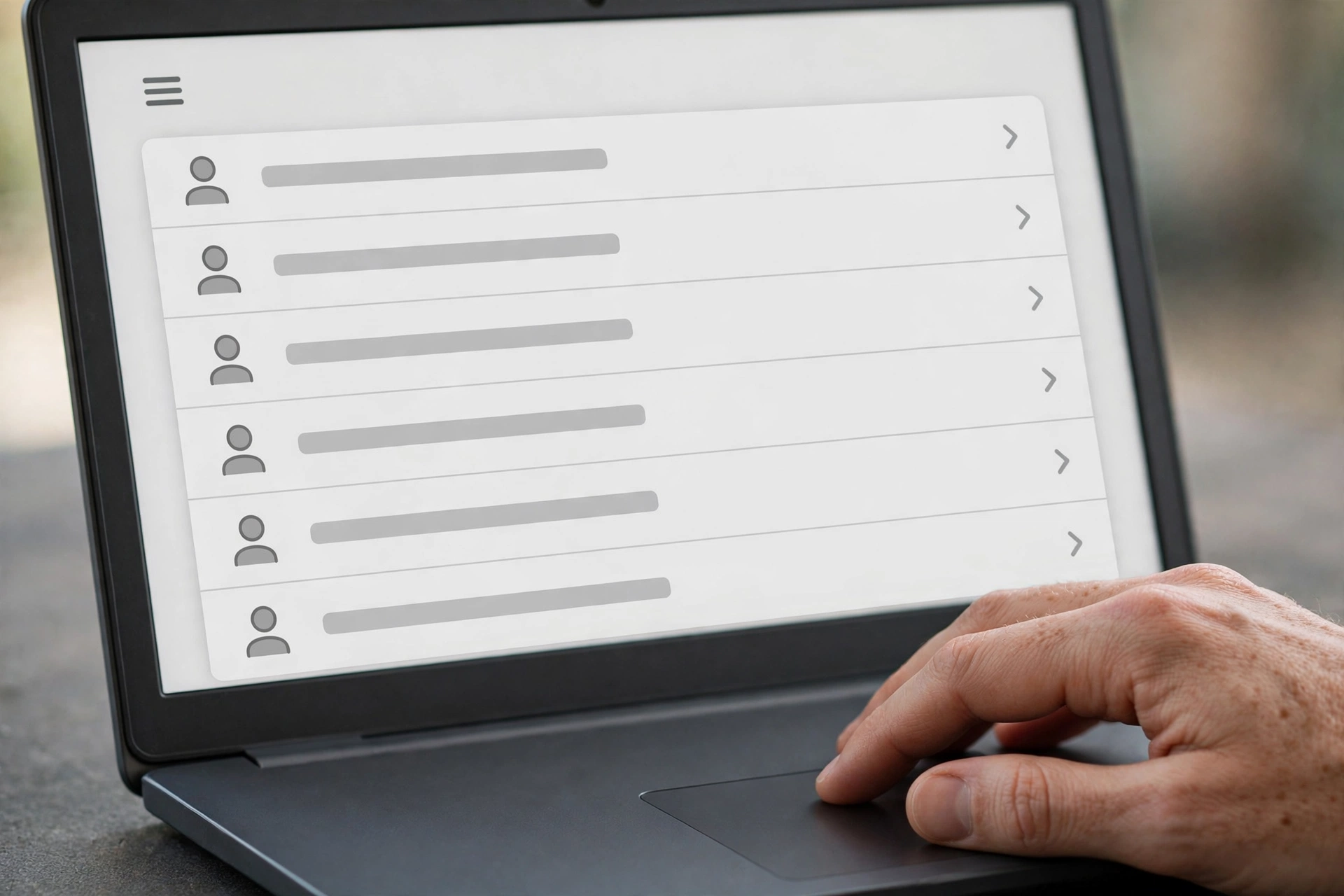
Follow these steps:
- Click the time in the bottom-right corner of the screen to open Quick Settings.
- Click the Settings gear.
- Go to Accounts. On older ChromeOS versions this section is called People.
- Find the additional account you want to remove.
- Click the three-dot menu next to the account name.
- Choose Remove this account, then confirm.
When you confirm, the Chromebook signs you out of that account and erases the files, bookmarks, extensions, and settings tied to it on this device. Your main profile is untouched, and the Google account itself still exists — its Gmail, Drive files, and synced data stay in the cloud, and you can add the account back any time by signing in again.
One honest note: this method only lists additional accounts. Your main account — the one the Chromebook profile belongs to — does not get a remove option here. If that is the account you want gone, use Method 2 if it is a separate user, or Method 3 for the owner.
Method 2: Remove a User From the Sign-In Screen
Use this when the account appears as its own profile on the Chromebook sign-in screen — for example, a family member’s profile, or an old profile you no longer use. You do not need to sign in to that profile first.
Follow these steps:
- Sign out of the Chromebook so you reach the sign-in screen. Click the time in the bottom-right corner, then Sign out — or press Ctrl + Shift + Q twice.
- On the sign-in screen, find the profile you want to remove.
- Click the down arrow next to the profile name.
- Choose Remove this user, then confirm.
This deletes that user’s local files and settings from the Chromebook. Their Google account and Drive files are not affected — only the copy stored on this device goes. The profile disappears from the sign-in screen, so nobody can sign into it from this Chromebook afterwards without adding it again.
This method works from the sign-in screen, so it is also the way to remove a profile when you cannot sign into it — for instance, if you have forgotten that profile’s password. The profile is removed either way; the password is only needed if you want to sign back in afterwards.
Method 3: Remove the Owner Account With a Powerwash
The owner account is the first Google account used to set up the Chromebook, and it cannot be removed like any other account. The only way to take it off the device is a Powerwash — a factory reset that erases every local user and setting and returns the Chromebook to its out-of-box state. Use this when you are giving the Chromebook away, selling it, or handing it to someone else as their own device.
Follow these steps:
- Back up any local files from the Downloads folder first — a Powerwash deletes everything stored on the device.
- Click the time in the bottom-right corner, then open Settings.
- Go to System preferences and look for Powerwash, or search for Powerwash in Settings.
- Select Reset next to Powerwash.
- Follow the prompts to restart and reset the Chromebook.
You can also start a Powerwash from the sign-in screen: sign out, press and hold Ctrl + Alt + Shift + R, select Restart, then choose Powerwash and Continue.
A Powerwash erases local users, settings, and files from the Chromebook. It does not delete any Google account or any data stored in the cloud — Gmail, Drive files, and photos stay where they are, and signing into the reset Chromebook with the same account brings your synced data back. If you are handing the device to someone else, sign out of your Google account remotely afterwards as well, so the device no longer appears among your signed-in sessions.
What Removing an Account Does and Does Not Do
- Local files are deleted. Files, downloads, and settings stored on the Chromebook under that profile are erased. That is why the guide starts with a backup — once the profile is gone, its local files cannot be recovered from the device.
- Your Google account stays. Removing an account from a Chromebook never deletes the Google account itself. Gmail, Drive, Photos, and everything else in the cloud are untouched, and the account works normally on other devices.
- Synced data comes back if you sign in again. Bookmarks, passwords, and extensions that were synced to the Google account reappear when you sign in with the same account on any Chromebook. Only data that was never synced — local files, and settings stored only on the device — is lost.
- Other profiles are untouched. Removing one account or user leaves every other profile on the Chromebook exactly as it was. Only a Powerwash touches all of them at once.
- The Chromebook stays usable. Removing an account does not lock the device or remove ChromeOS. After a removal, the sign-in screen simply shows one fewer profile; after a Powerwash, the Chromebook starts its first-time setup again.
After removing an account, it is worth checking which devices logged into your Google account to make sure every session listed there is one you recognise — especially if you removed the account because the Chromebook is changing hands.
Troubleshooting
The remove option is missing
If there is no Remove this account option next to an account in Settings, that account is almost certainly the main or owner account for the profile. The owner can only be removed with a Powerwash (Method 3). The other common cause is a managed device: on a school or work Chromebook, an administrator can restrict account removal, and the option simply does not appear. On a managed device, ask the administrator — you cannot remove the restriction yourself.
I signed out, but the profile is still on the sign-in screen
That is normal. Signing out only closes the session; the profile stays listed so you can sign back in. To take the profile off the screen, use Method 2 — down arrow next to the profile name, then Remove this user. If the profile is the owner account, it can only be removed with a Powerwash.
I removed the wrong account
Nothing in the cloud is lost — the Google account itself still exists, and its Gmail and Drive files are untouched. Sign in with that account again on the Chromebook to add the profile back; synced bookmarks, passwords, and extensions return with it. Only local files that were stored solely on the device under that profile are gone for good, which is why the guide insists on a backup first.
Chrome still shows the old account’s pages after removal
The account is gone, but a page left open in another profile may still show its old cached copy. Press Ctrl + Shift + R to reload the page without its cached copy, and if the whole browser feels stale, clear cache in Chrome and reload.
The Chromebook is managed and I cannot remove anything
On a school or work Chromebook, the administrator controls which accounts can be added or removed, and some devices re-enrol automatically after a reset. If the remove options are missing or greyed out, the device is managed and the restriction comes from the organisation, not from a fault. Contact the administrator or the school or workplace IT team — a Powerwash will not get around it on a managed device.
I need proof of what went wrong
Take a screenshot of the Settings page or the sign-in screen showing the missing option or the error — an image of the problem is far more useful to a support team than a description of it, and it lets you show exactly which account and which menu you are looking at.
Frequently Asked Questions
How do I remove a Google account from my Chromebook?
Open Settings, go to Accounts, click the three-dot menu next to the account, and choose Remove this account. That works for an additional account. To remove a whole user profile, sign out and use the down arrow next to the profile on the sign-in screen. The owner account can only be removed with a Powerwash.
Does removing a Google account from a Chromebook delete the account?
No. Removing an account from a Chromebook only deletes that profile and its local files from the device. The Google account itself, with its Gmail, Drive files, and photos, stays in the cloud and works normally on other devices. You can add the account back by signing in again.
How do I remove the owner account from a Chromebook?
You cannot remove the owner account through Settings or the sign-in screen. The only way is a Powerwash: back up your local files, open Settings, go to System preferences, choose Powerwash, and select Reset. The Chromebook returns to its out-of-box state and every local user is erased.
What is the difference between signing out and removing an account?
Signing out closes your session and returns to the sign-in screen, where your profile stays listed and you can sign straight back in. Removing an account deletes the profile and its locally stored files from the Chromebook, so the profile disappears from the sign-in screen.
Can I remove a Google account from a Chromebook without the password?
Yes, for a user profile on the sign-in screen — Method 2 works without signing into that profile. The password is only needed if you want to sign back into the account afterwards. Removing an additional account from inside your own signed-in session needs no password either; only adding the account back does.
Why can’t I remove a Google account from my Chromebook?
Usually because it is the owner account, which can only be removed with a Powerwash, or because the Chromebook is managed by a school or workplace and the administrator has restricted account removal. On a managed device, the option is hidden by policy and cannot be turned on from the device itself.






One Comment