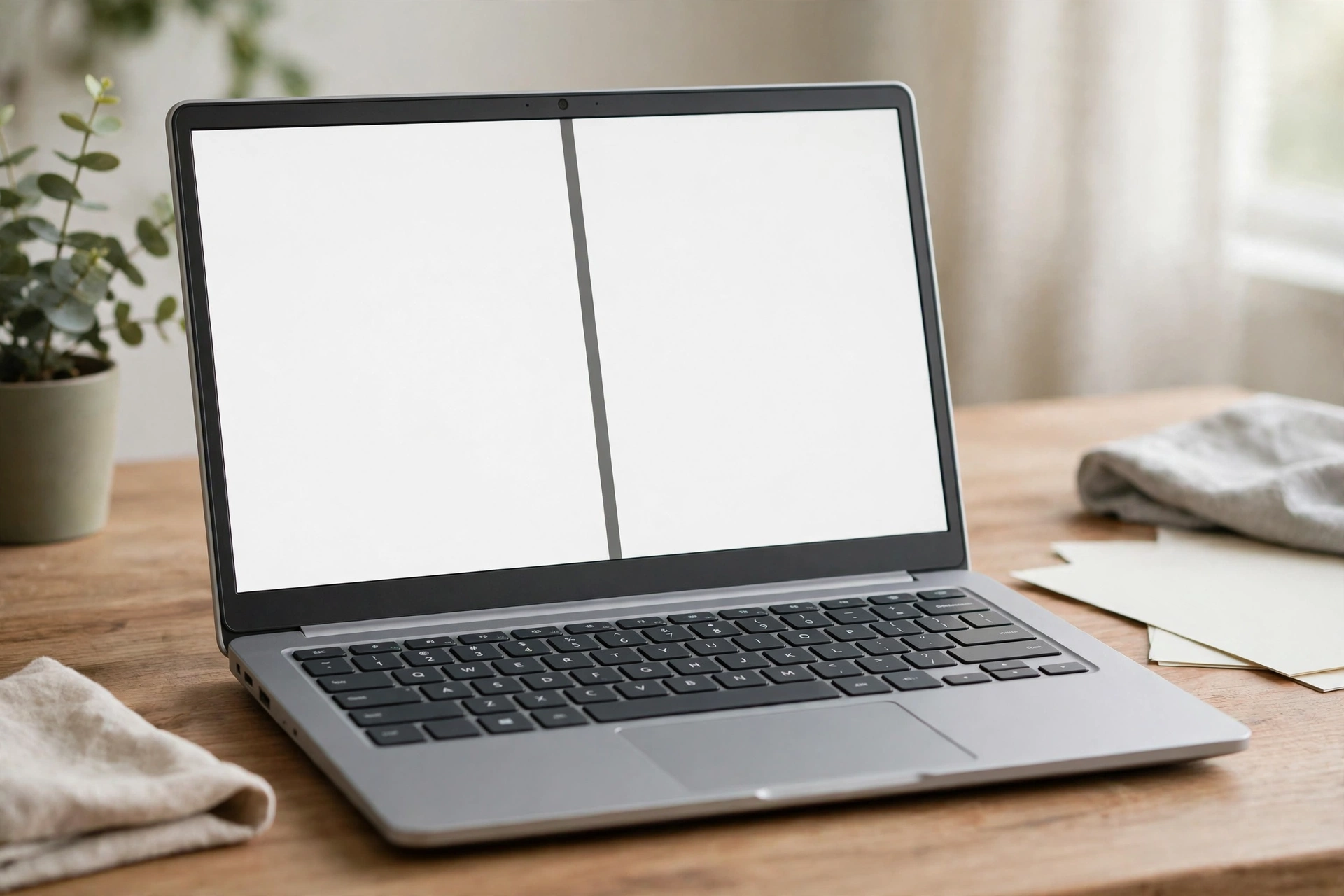
To split screen on a Chromebook, drag a window’s title bar to the left or right edge of the screen until an outline appears, then release — the window snaps to that half. Click the second window and drag it to the opposite edge, or snap it with the keyboard: Alt + [ for the left half and Alt + ] for the right half. Both windows then sit side by side, each filling half of the screen.
That short answer covers the most common case: two windows side by side. The rest of this guide covers the four ways to split screen on a Chromebook — dragging, the keyboard shortcuts, Overview, and the layout menu on the Maximise button — plus how to resize the split, how to get out of it, and what to do when a window will not snap.
If you only need the split once, Method 1 (dragging) is the one to use. If you split your screen every day, Method 2 (the keyboard) is faster once the two shortcuts are in your fingers.
The Short Answer: Split Screen in 10 Seconds
- Snap the first window: drag its title bar to the left edge until an outline appears, then release. Or click the window and press Alt + [.
- Snap the second window: drag it to the right edge and release, or click it and press Alt + ].
- Resize the split: drag the divider — the thin line between the two windows — left or right.
- Leave split screen: click a window and press Alt + = to maximise it, or drag its title bar away from the edge.
Before You Start
- You need two windows, not two tabs. Two tabs inside one Chrome window cannot sit side by side. Drag one tab out of the window by its tab strip first — it becomes a second window of its own — and then split the two windows.
- Split screen holds two windows. ChromeOS split screen puts two windows side by side and no more. A third window stays behind them; switch to it with Overview or Alt + Tab.
- Dragging on a touchpad takes two fingers. Press and hold the title bar with one finger, then drag with another. On a touchpad, right-click is a two-finger tap — the full gesture is in our guide to how to right-click on a Chromebook.
- Moving text between the halves is easy. You can copy and paste text from one window to the other with Ctrl + C and Ctrl + V.
- Your clipboard carries across both halves. Anything you copied earlier is still in the clipboard — press Search + V to open it and pick an item to paste.
- A full-screen window will not snap. If a window is full screen, its edges are hidden. Press the full-screen key (F4) or Alt + = first to bring it back to a normal window, then snap it.
Method 1: Split Screen by Dragging a Window
This is the main method, and the easiest to learn. It works with a mouse or a touchpad, and it is the one to teach someone who has never split a screen before.

Follow these steps:
- Open the two windows you want side by side.
- Click the title bar of the first window — the bar across the top with the window’s name — and hold the mouse button down.
- Drag it toward the left edge of the screen. As you reach the edge, an outline appears covering that half of the screen.
- Release the mouse button. The window snaps to the left half.
- Click the second window, drag its title bar to the right edge, and release when the outline appears. It snaps to the right half.
When you snap the first window by dragging, ChromeOS usually shows thumbnails of your other open windows on the empty half. Click one and it fills the other side — no second drag needed.
One honest note: dragging with a touchpad feels fiddly the first time, because you are holding and dragging at once. If the window drops in the middle of the screen instead of snapping, drag it again and push it a little further into the edge before releasing. The outline is the signal — no outline, no snap.
Method 2: Split Screen With the Keyboard Shortcuts
If you split your screen often, the keyboard is faster than dragging. Two shortcuts do the whole job.
- Alt + [ snaps the window you are using to the left half of the screen.
- Alt + ] snaps it to the right half.
Follow these steps:
- Click the first window so ChromeOS knows it is the active one.
- Press Alt + [. It snaps to the left half.
- Click the second window.
- Press Alt + ]. It snaps to the right half.
Two Chromebook-specific notes. First, click the window before pressing the shortcut — the keys snap the active window, so pressing them with the wrong window in front snaps the wrong one. Second, the shortcuts do not work on the login screen or while a window is full screen, so bring the window back to a normal size first (see Before You Start).
A handy extra: pressing Alt + [ twice shrinks the window to about a third of the screen instead of a half, which leaves the other window with two thirds. That partial split has been in ChromeOS since version 105, and it is useful when one window needs most of the room — a document you are writing, with a reference page beside it.
Method 3: Split Screen From Overview
Overview shows every open window as a thumbnail, so it is the best method when you have several windows open and want to pick the pair by sight.
Follow these steps:
- Press the Show windows key — the key in the top row with a rectangle and two lines beside it. Overview opens, showing all your open windows.
- Drag one window’s thumbnail to the left or right edge of the screen and release. It snaps to that half.
- Click one of the remaining thumbnails. It fills the other half.
You can also reach Overview from the shelf: click the Show windows button at the bottom of the screen if your Chromebook shows one. Either way, the drag works the same — thumbnail to the edge, release, pick the second window.
Method 4: Split Screen From the Maximise Button
On newer ChromeOS versions, hovering over a window’s Maximise button opens a layout menu, so you can split the screen without dragging at all.
Follow these steps:
- Move the pointer over the Maximise button — the square in the top right of the window, between Minimise and Close — and hold it there for a moment. Do not click.
- A small menu appears showing layout options, including a half split and a partial split.
- Click the left or right half of the layout you want. The window snaps to that side.
- ChromeOS shows thumbnails of your other open windows on the empty half. Click one to fill it.
If no menu appears when you hover, your Chromebook is on an older ChromeOS version — the layout menu arrived with newer releases. Use Method 1 or Method 2 instead; the result is exactly the same split.
Resize the Split and Leave Split Screen
- Resize: drag the divider — the thin line down the middle between the two windows — left or right. Each window resizes as you drag.
- Maximise one window: click it and press Alt + =. It fills the whole screen and the split ends.
- Drag a window out: click a window’s title bar and drag it away from the edge. It becomes a free-floating window again.
- Push the divider to an edge: dragging the divider all the way to one side gives the other window the whole screen.
- Switch between the pair: Alt + Tab moves between the two windows — and between a snapped pair and any window behind them — without breaking the split.
Troubleshooting
The window will not snap
Click the window first so it is active, then try again. If it is full screen, press F4 or Alt + = to bring it back to a normal window first. Also check that both windows are on the same desk and the same display — a window on another desk or an external display cannot join a split on this screen.
Alt + [ does nothing
The shortcut snaps the active window, so click into the window first and press it again. It does not work on the login screen or while the window is full screen. If it still does nothing, try dragging instead — if dragging works, the keyboard is the problem, not the split.
A page looks old or broken in one half
The split is not the problem — the page is showing a stale copy. Press Ctrl + Shift + R to reload that page without its cached copy, and if the whole browser feels stale, clear cache in Chrome and reload the page.
I need a third window as well
ChromeOS split screen holds two windows at a time, so a third window has to wait behind them. Press the Show windows key to see all three as thumbnails, click the third one to bring it forward, and use Alt + Tab to move between them. If one window only needs a little room, use the partial split from Method 2 — Alt + [ twice — so the second window keeps two thirds.
The layout still will not snap
Take a screenshot of what you see — an image of the layout is far more useful to a support team than a description of it, and it lets you show exactly which window refuses to snap and where the divider sits.
Frequently Asked Questions
What is the shortcut to split screen on a Chromebook?
Press Alt + [ to snap the active window to the left half, or Alt + ] to snap it to the right half. Click the window first so it is active, then press the shortcut. Switch to the second window and press the other shortcut to fill the empty half.
How do I split screen on a Chromebook without a keyboard?
Drag a window’s title bar to the left or right edge of the screen until an outline appears, then release — it snaps to that half. Drag the second window to the opposite edge. The same drag works with a mouse or a touchpad.
Can I split screen with three windows on a Chromebook?
No — ChromeOS split screen holds two windows side by side. You can make one of them a third of the screen with a partial split (press Alt + [ twice), but a third window still has to sit behind the pair. Use Overview or Alt + Tab to switch to it.
How do I get out of split screen on a Chromebook?
Click the window you want to keep and press Alt + = to maximise it, which ends the split. Or drag the window’s title bar away from the screen edge, or drag the divider all the way to one side so the other window takes the whole screen.
How do I resize the split on a Chromebook?
Drag the divider — the thin line between the two windows — left or right. The windows resize as you drag, and the split stays in place.
Why is Alt + [ not working on my Chromebook?
Usually because the wrong window is active or the window is full screen. Click into the window first, bring it out of full screen with F4 or Alt + =, and press the shortcut again. The shortcuts also do not work on the login screen.