
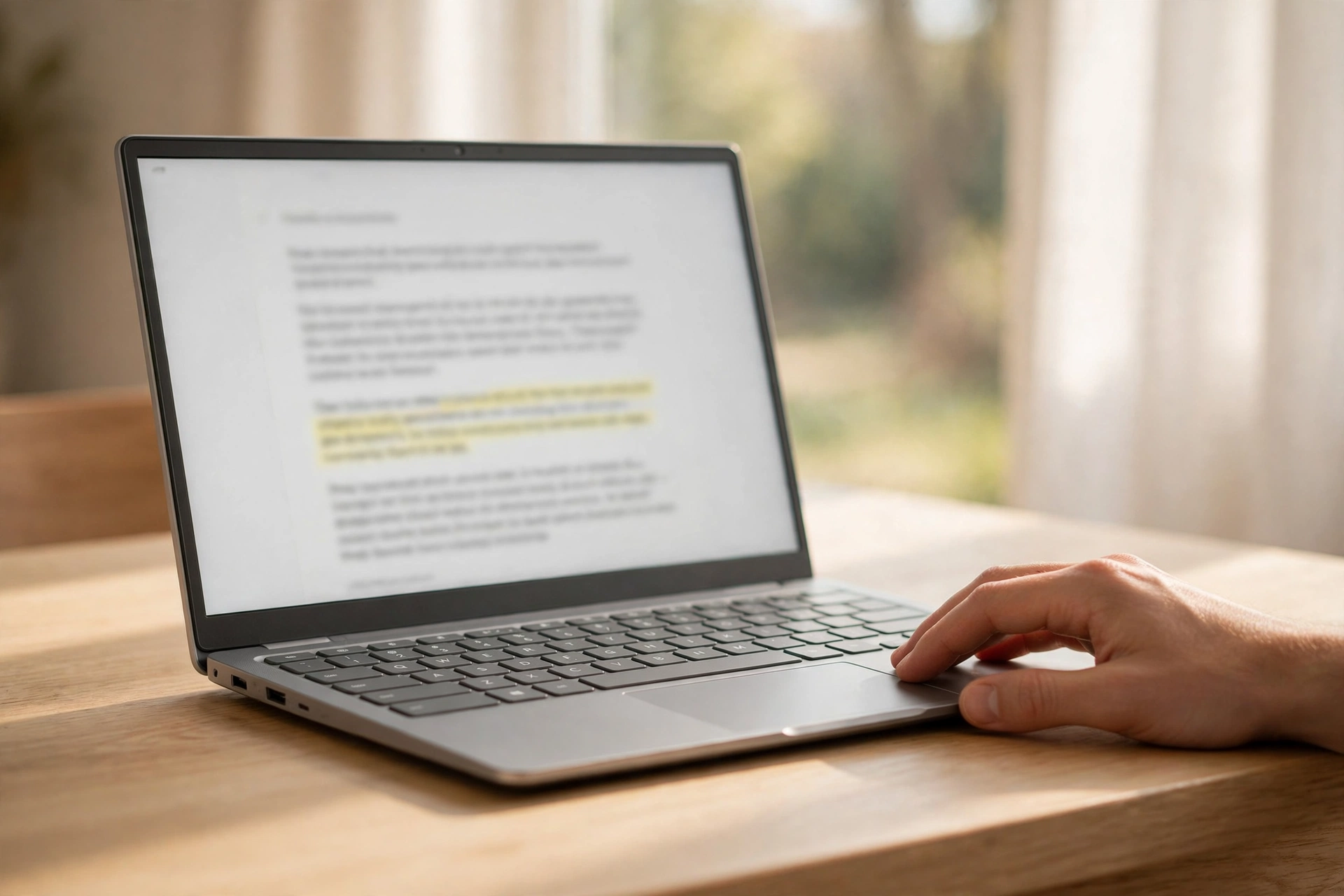
To copy and paste on a Chromebook, select the text, image, or file you want, press Ctrl + C to copy it, click where you want it to go, and press Ctrl + V to paste. To move something instead of copying it, press Ctrl + X to cut, then Ctrl + V to paste. The same shortcuts work in the Chrome browser, Google Docs, Android apps, Linux apps, and the Files app, so once you learn them, they work almost everywhere on the device.
That short answer covers most cases. The rest of this guide covers each method in full: the keyboard shortcuts, the touchpad menu for when you prefer the mouse, the built-in clipboard history for pasting something you copied earlier, copying images, and moving files in the Files app. It also covers what to do when paste does nothing, when formatting comes along for the ride, and when the clipboard history will not open.
If you only need to copy a sentence into a document, Method 1 is all you need. If you copy several things in a row and paste them in a different order, read Method 3 first, because the clipboard history is the feature most Chromebook owners never find.
The Short Answer: Copy and Paste in 30 Seconds
- Select it: click and drag across the text, or click once on a file or image to select it.
- Copy: press Ctrl + C. To move it instead, press Ctrl + X.
- Go to the destination: click where the pasted item should appear.
- Paste: press Ctrl + V.
- Paste without formatting: press Ctrl + Shift + V instead, and the text takes on the formatting of its new home.
- Paste an older copy: press Search + V to open the clipboard history and pick any of your last five copied items.
The step people miss most often is selecting before copying. If nothing is selected, Ctrl + C copies nothing, and Ctrl + V pastes whatever was copied before — which is usually not what you wanted. Look for the highlight: selected text turns a different colour, and a selected file gets a shaded background.
Before You Start
A little preparation makes copy and paste feel instant instead of fiddly, because the shortcuts are simple but the selection step is where most mistakes happen.
- Learn the three ways to select text: click and drag across the words you want, double-click a single word to select just that word, or triple-click a paragraph to select the whole paragraph. Press Ctrl + A to select everything on the page or in the document.
- Know where paste works: you can paste into any text field, document, email, message, or search box. You cannot paste text into a place that does not accept typing, such as a picture or a video player.
- Copy is not the same as cut: Ctrl + C leaves the original where it is and makes a copy. Ctrl + X removes the original and moves it when you paste. Use copy when you want the original to stay, and cut when you are moving something.
- One copy at a time — unless you use history: a normal paste always pastes the last thing you copied. If you copy a second item, the first one is replaced. The clipboard history in Method 3 is the exception, and it keeps your last five items.
- The Search key is your friend: the Search key sits where Caps Lock sits on a standard keyboard, and on newer Chromebooks it is labelled Launcher. It opens the clipboard history with V, and it is also the key that opens the app launcher on its own.
Method 1: Copy and Paste With Keyboard Shortcuts
This is the fastest method, and it is the one most people should use. The shortcuts are the same ones Windows uses, so if you have copied and pasted on any other computer, you already know them. They work in the browser, in Google Docs, in Android apps, in Linux apps, and in the Files app, with no setup and nothing to install.

Follow these steps:
- Select what you want to copy. Drag across the text, double-click a word, triple-click a paragraph, or click a file once to select it.
- Press Ctrl + C to copy. The item is now stored on the clipboard. If you want to move it instead, press Ctrl + X to cut.
- Click where you want the item to go — in a document, an email, a message box, or a folder.
- Press Ctrl + V to paste. The item appears at the cursor.
That is the whole method. Three extra shortcuts make it more useful:
- Ctrl + Shift + V — paste as plain text: pastes only the words, without the bold, colour, font size, or links from the original. Use this when pasted text arrives looking wrong — a different font, a strange colour, or a link you did not want. It is the single most useful copy-and-paste shortcut after Ctrl + V itself.
- Ctrl + A — select all: selects everything in the current document, page, or folder, so you can copy a whole page of text in one go.
- Search + V — open clipboard history: shows your last five copied items so you can paste an older one. Method 3 explains this in full.
The keyboard shortcuts are worth learning even if you usually use the touchpad, because they are faster and they work in places where the right-click menu does not appear, such as some web apps and the address bar.
Method 2: Copy and Paste With the Touchpad (Right-Click Menu)
If you prefer the touchpad to the keyboard, or you cannot remember the shortcuts, the right-click menu does the same job with a few taps. Chromebooks have no separate right mouse button, so the right-click is a gesture instead.
To right-click on a Chromebook, tap the touchpad with two fingers at the same time, or hold Alt and click with one finger. Either one opens the context menu. If the two-finger tap feels awkward at first, the Alt + click version is the easier one to learn, and both do exactly the same thing. The full steps for the gesture are in our guide to how to right-click on a Chromebook.
Follow these steps:
- Select the text by dragging across it with one finger, or click a file or image once to select it.
- Tap the touchpad with two fingers to open the menu.
- Choose Copy from the menu. Choose Cut if you want to move the item instead.
- Click where you want the item to go.
- Tap with two fingers again and choose Paste.
The menu also has a Paste as plain text option in most text fields, which does the same job as Ctrl + Shift + V — it pastes only the words, without the original formatting. If you paste into Google Docs and the text arrives in the wrong font, that menu option is the fix.
This method is best when you are already using the touchpad, when you are on a touchscreen Chromebook and prefer tapping, or when you are teaching someone who finds keyboard shortcuts hard to remember. It is slower than the keyboard for repeated copying, because every copy and paste needs two menu trips, but it is the easiest method to discover on your own.
Method 3: Use Clipboard History to Paste an Older Copy
ChromeOS has a built-in clipboard history that remembers your last five copied items, so you can copy several things in a row and paste them in any order. It is the feature that turns copy and paste from a one-item trick into a real workflow, and most Chromebook owners never find it because nothing on screen advertises it.
Press Search + V to open it. A small popup appears near the cursor showing your recent copies — text snippets, links, and images — with the most recent item at the top. Click any item to paste it immediately at the cursor. You can also open the same popup from the right-click menu, where it appears as Clipboard, in some text fields.
Here is a typical way to use it. Copy an address, then copy a phone number, then copy a name, without pasting anything in between. Then open the document, press Search + V, and paste the three items one at a time, in whatever order the document needs them. Without the history, you would have to go back to the source after every single paste.
A few things are worth knowing about the history:
- It holds five items: the last five things you copied, whether text, a link, or an image. Copying a sixth item pushes the oldest one out.
- It clears on restart: everything in the history disappears when you restart the Chromebook, so it is for short-term juggling, not storage.
- It does not hold files: copying a file in the Files app does not add it to this history. Files use the normal clipboard only, one at a time.
- You can pin an item: open the history with Search + V and click the pin icon on an item to keep it at the top, so it survives the next few copies.
- You can delete one item: open the history and click the X next to an item to remove just that one, which is useful if you copied a password or something private and do not want it sitting in the list.
- It needs ChromeOS 89 or later: if Search + V does nothing at all, the Chromebook may be running an older version. Update it from Settings, then About ChromeOS, then Check for updates, and try again.
If you want the full walkthrough of the history on its own, including pinning and clearing, see our guide to the clipboard on a Chromebook.
Method 4: Copy and Paste Images
Images copy and paste the same way text does, with one difference: how you select the image depends on where it lives. In a document or a web page, you click the image once to select it, then copy. On a web page you can also right-click the image directly, without selecting it first.
Follow these steps to copy an image from a web page:
- Find the image you want on the page.
- Tap the touchpad with two fingers on the image to open the menu, or hold Alt and click it.
- Choose Copy image from the menu.
- Click where you want the image to go — a document, an email, or a message.
- Press Ctrl + V to paste it.
The same steps work for a picture inside a document or a presentation: click the picture once to select it, press Ctrl + C, then paste with Ctrl + V. If the picture is part of a larger layout and clicking it selects the whole page instead, right-click the picture itself and choose Copy image.
A copied image also lands in the clipboard history, so you can copy a picture, copy some text, and then press Search + V to choose which one to paste. That works for images copied from web pages and documents, but not for files copied in the Files app.
If you need the image as a file rather than a paste, right-click it and choose Save image as instead, and it downloads to the Downloads folder. That is the better option when you want to keep the picture, attach it later, or use it in another app, because a pasted image only lives inside the document you pasted it into.
A quick note on other people’s pictures: copying an image from a website for a school project or a personal document is fine, but do not republish someone else’s photos as your own. If you take a screenshot of the screen, the result is an image file too, and you can copy and paste that file the same way — our guide to taking a screenshot on a Chromebook covers the shortcuts.
Method 5: Copy and Paste Files in the Files App
Files and folders copy and paste with the same shortcuts as text, and this is the quickest way to duplicate a file or move it to another folder without dragging it across the screen.
- Open the Files app from the shelf or the app launcher.
- Click the file or folder once to select it. Hold Ctrl and click to select several files at once.
- Press Ctrl + C to copy, or Ctrl + X to cut if you want to move it.
- Open the folder where the file should go — Downloads, Google Drive, a USB drive, or any other folder.
- Press Ctrl + V to paste. A copied file appears alongside the original; a cut file disappears from its old folder and appears in the new one.
The same steps work with the right-click menu: two-finger tap a file, choose Copy or Cut, open the destination folder, two-finger tap an empty area, and choose Paste.
Two details catch people out. First, pasting a copied file into the same folder creates a second copy with a number added to its name, such as “homework (1)”, rather than overwriting the original. Second, copying a file to Google Drive uploads it, so a large file takes a while and needs an internet connection, while copying between local folders is instant.
Cut and paste is the safest way to move files between folders, because dragging a file across the Files app sometimes drops it in the wrong folder by accident. If a cut file seems to vanish, check the destination folder first — the file is only removed from the old folder once the paste succeeds, so it is not lost, it is just waiting.
If you copy and paste files on a Chromebook that other people also use, remember that the clipboard can hold sensitive material, and a copied file name can reveal more than you expect. On a shared device, it is worth knowing which devices logged into your Google account are, so you know where your account — and anything copied from it — can be reached.
Which Method Should You Use?
The five methods overlap, so the choice comes down to what you are copying and how often you do it.
| Method | Best for | Needs keyboard | Remembers older copies |
|---|---|---|---|
| Keyboard shortcuts | Everyday copying, fast and everywhere | Yes | No, last copy only |
| Touchpad right-click menu | Occasional copying, no shortcuts to remember | No | No, last copy only |
| Clipboard history | Copying several items, then pasting in any order | Yes, Search + V | Yes, last five items |
| Copy image | Pictures from web pages and documents | No, menu or Ctrl + V | Yes, images join the history |
| Files app copy and paste | Duplicating or moving files and folders | Yes, or the menu | No, files do not join the history |
If you are unsure, start with the keyboard shortcuts. They handle most copying, they are already on the device, and you can move to the clipboard history only when you find yourself copying several things in a row.
Troubleshooting: When Copy and Paste Does Not Work
Nothing happens when I press Ctrl + V
The most common reason is that nothing is on the clipboard, because the copy step did not register. Go back, select the text again and watch for the highlight, then press Ctrl + C and try pasting again. If you copied something a long time ago and restarted the Chromebook since, the clipboard was cleared by the restart, so copy it again.
Paste works, but the formatting is wrong
The pasted text is carrying the formatting from its original page — a different font, size, or colour, or a link you did not want. Paste again with Ctrl + Shift + V, or choose Paste as plain text from the right-click menu, and the text takes on the formatting of its new home instead.
Search + V does nothing
The clipboard history needs ChromeOS 89 or later, and it only opens when the cursor is in a place that accepts typing. Click into a text field or a document first, then press Search + V. If it still does nothing, update the Chromebook from Settings, then About ChromeOS, then Check for updates. On a school or work Chromebook, an administrator can also disable the clipboard history, in which case only the administrator can turn it back on.
The right-click menu does not appear
You may be tapping with one finger instead of two. Tap the touchpad with two fingers at the same time, or hold Alt and click with one finger. If the two-finger tap never works, check Settings, then Device, then Touchpad, where the tap-to-click and gesture settings live.
I can copy text but not paste it into a website
Some websites and web apps block pasting, usually password fields and certain exam or form pages. That is the site’s choice, not a Chromebook problem, and no shortcut gets around it. Type the text by hand in that field, or paste it into a document first and copy it from there in smaller pieces.
A file I cut has disappeared
A cut file is only removed from its old folder once the paste succeeds. Open the destination folder and look there first, and sort by date so the newest file is at the top. If the paste went into the wrong folder by mistake, use the Files app search to find the file by name, then move it to the right folder.
Copy and paste is slow or pastes the wrong item
This usually means the clipboard holds something large, such as a big image, or that an extra copy happened in between and replaced the item you wanted. Copy the item again, paste it straight away, and use the clipboard history with Search + V when you need to juggle several items. If you install a clipboard manager extension from the Chrome Web Store to keep a longer history, check the extension’s permissions before installing it, and only install it from the official Chrome Web Store.
Frequently Asked Questions
How do I copy and paste on a Chromebook?
Select the text, image, or file, press Ctrl + C to copy, click where it should go, and press Ctrl + V to paste. To move it instead of copying, press Ctrl + X to cut and then Ctrl + V to paste. The same shortcuts work in the browser, Google Docs, Android apps, Linux apps, and the Files app.
How do I paste without formatting on a Chromebook?
Press Ctrl + Shift + V instead of Ctrl + V. That pastes only the words, without the bold, colour, font size, or links from the original, so the text takes on the formatting of its new home. You can also choose Paste as plain text from the right-click menu in most text fields.
How do I see my clipboard history on a Chromebook?
Press Search + V, where the Search key sits where Caps Lock sits on a standard keyboard. A popup shows your last five copied items — text, links, and images — and you click any item to paste it. The history clears when you restart the Chromebook, and it does not hold files copied in the Files app.
Why is Ctrl + V not working on my Chromebook?
Usually nothing was copied, or the clipboard was cleared by a restart. Select the text again, watch for the highlight, press Ctrl + C, and try pasting again. If the cursor is not in a place that accepts typing, such as a picture or a video player, paste cannot work there either — click into a text field or a document first.
How do I copy and paste on a Chromebook without a keyboard?
Tap the touchpad with two fingers on the selected text, image, or file to open the right-click menu, choose Copy, then tap with two fingers where it should go and choose Paste. On a touchscreen Chromebook you can also long-press the selection to open the same menu.
Can I copy and paste files between folders on a Chromebook?
Yes. Open the Files app, select the file, press Ctrl + C to copy or Ctrl + X to cut, open the destination folder, and press Ctrl + V to paste. The same steps work with the right-click menu. Pasting a copy into the same folder creates a second copy with a number added to its name, and copying to Google Drive uploads the file, so it needs an internet connection.








4 Comments